Provision two Hetzner VPS boxes, install Agent Vault on one and Hermes Agent on the other, and broker every outbound call through Agent Vault. Plan for 60–90 minutes and ~€10/month. By the end, you’ll have:
  1. Agent Vault running on one VPS, holding real Anthropic, GitHub, Slack, and Telegram credentials encrypted at rest behind a master password.
  2. A Hermes Agent running on a second VPS, reachable via a Telegram bot, with every outbound API call brokered through Agent Vault and revocable from the UI in one click.
Companion video for this guide: a full end-to-end walkthrough from two empty VPS boxes to a brokered, Telegram-reachable Hermes Agent. Watch below or open on YouTube.

Prerequisites

  • A Hetzner Cloud account.
  • API keys for the services you want Hermes to call. This guide uses Anthropic, GitHub, and Slack.
  • A Telegram account on your phone.
This guide installs Agent Vault as a native binary via the install script, the path documented in Self-hosting locally. For containers, see Docker self-hosting.

Architecture

+-----------------------------------------------------------------+
| Public internet                                                 |
|                                                                 |
|   api.anthropic.com   api.github.com                            |
|   slack.com           api.telegram.org                          |
|          ^                   ^                                  |
+----------+-------------------+----------------------------------+
           |                   |
           +-------------------+
                               | outbound HTTPS, Agent Vault
                               | injects real credentials here
+------------------------------+----------------------------------+
| Private network (av-net, 10.0.0.0/24)                           |
|                              |                                  |
|  +---------------------------+----+     +--------------------+  |
|  | av-broker  10.0.0.2            |     | hermes-vps         |  |
|  | Agent Vault server             |<----| 10.0.0.3           |  |
|  | :14321  control UI / API       |     | Hermes Agent +     |  |
|  | :14322  MITM proxy             |     | gateway daemon     |  |
|  | (real credentials, encrypted)  |     | (placeholders)     |  |
|  +----------------^---------------+     +--------------------+  |
|                   |                                             |
+-------------------+---------------------------------------------+
                    | SSH + tunnel for AV UI from laptop
                    | (browser admin; phone for Telegram bot)
                    |
                Operator
Only av-broker holds real credentials, encrypted at rest behind your master password. hermes-vps holds placeholder strings (__anthropic_api_key__, etc.) and one revocable agent token.

1. Provision the VPS boxes

1

Create a Hetzner project

In the Hetzner Cloud Console, click + New Project. Name it (e.g. agent-vault-lab) and click in. Everything that follows happens inside this project.
2

Generate an SSH key on your laptop

ssh-keygen -t ed25519 -f ~/.ssh/agent-vault-lab -C "agent-vault-lab"
Every ssh command in this guide uses -i ~/.ssh/agent-vault-lab to pin to this key.
3

Upload the public key to Hetzner

In the project sidebar: Security → SSH Keys → Add SSH Key. Paste the contents of ~/.ssh/agent-vault-lab.pub, name it (e.g. lab), and tick Make default for this project before saving.
4

Create the private network

Networks → Create Network. Set:
  • Name: av-net
  • IP range: 10.0.0.0/24
  • Network zone: any (e.g. eu-central)
5

Create av-broker

Servers → + Add Server. Set:
PanelSetting
LocationA datacenter in your av-net network zone (e.g. nbg1)
ImageUbuntu 24.04
TypeCX23 (or any cheap x86 tier)
NetworkingTick av-net under Private networks, then set the IP to 10.0.0.2
Nameav-broker
Click Create & Buy now.
6

Create hermes-vps

Repeat the previous step with two changes:
  • Networking → Private network IP: 10.0.0.3
  • Name: hermes-vps
7

Verify private connectivity

From your laptop:
ssh -i ~/.ssh/agent-vault-lab root@<av-broker-public-ip>
ping -c 3 10.0.0.3
Three replies confirms the private subnet is live. Type exit to disconnect.

2. Restrict SSH to your laptop

1

Find your laptop's public IPv4

curl -4 ifconfig.me; echo
2

Create and attach the firewall

Firewalls → Create Firewall, name ssh-lockdown. Add one inbound rule:
  • Protocol: TCP
  • Port: 22
  • Source IPs: the IPv4 from the previous step
Leave outbound rules empty (Hetzner allows all outbound by default).After saving, scroll down to Apply To → Servers and tick both av-broker and hermes-vps.
If your laptop’s public IP changes (cafe networks, VPNs), update the firewall rule’s source IP.

3. Install Agent Vault on av-broker

1

SSH into av-broker

From your laptop:
ssh -i ~/.ssh/agent-vault-lab root@<av-broker-public-ip>
Every command in this phase runs on av-broker until you exit.
2

Install Agent Vault

curl --proto '=https' --proto-redir '=https' --tlsv1.2 -fsSL https://get.agent-vault.dev | sh
The script detects your architecture, verifies the signed release, and drops the binary at /usr/local/bin/agent-vault.
3

Install tmux

apt update && apt install -y tmux
You’ll run Agent Vault inside a tmux session so it survives your SSH disconnect.
4

Launch the server inside tmux

tmux new -s av
agent-vault server --host 10.0.0.2 --port 14321 --mitm-port 14322
--host 10.0.0.2 binds both listeners to the private NIC, keeping Agent Vault unreachable from the public internet.First-run prompts: master password, admin email, admin password.Detach with Ctrl-B then D. You’ll see [detached from session av] and drop back to your normal shell. The server keeps running inside the tmux session.
5

Verify the server

curl -sI http://10.0.0.2:14321/health
Expect HTTP/1.1 200 OK.
On reboot, tmux dies and so does the server. SSH back in, tmux new -s av, restart with the same command, re-enter the master password. For zero-touch restart, set AGENT_VAULT_MASTER_PASSWORD, but note the password then lives in an env file.

4. Configure the vault

1

Open an SSH tunnel

In a new terminal on your laptop (don’t reuse the one you used to install Agent Vault):
ssh -i ~/.ssh/agent-vault-lab -L 14321:10.0.0.2:14321 root@<av-broker-public-ip> -N
The terminal hangs silently. That’s correct. Leave it running for the rest of the guide. Closing it stops the tunnel and the AV UI goes dark.Open http://localhost:14321 in your laptop’s browser and sign in with the admin email and password you set during install.
2

Understand vaults, credentials, and services

You’ll create one of each. Briefly:
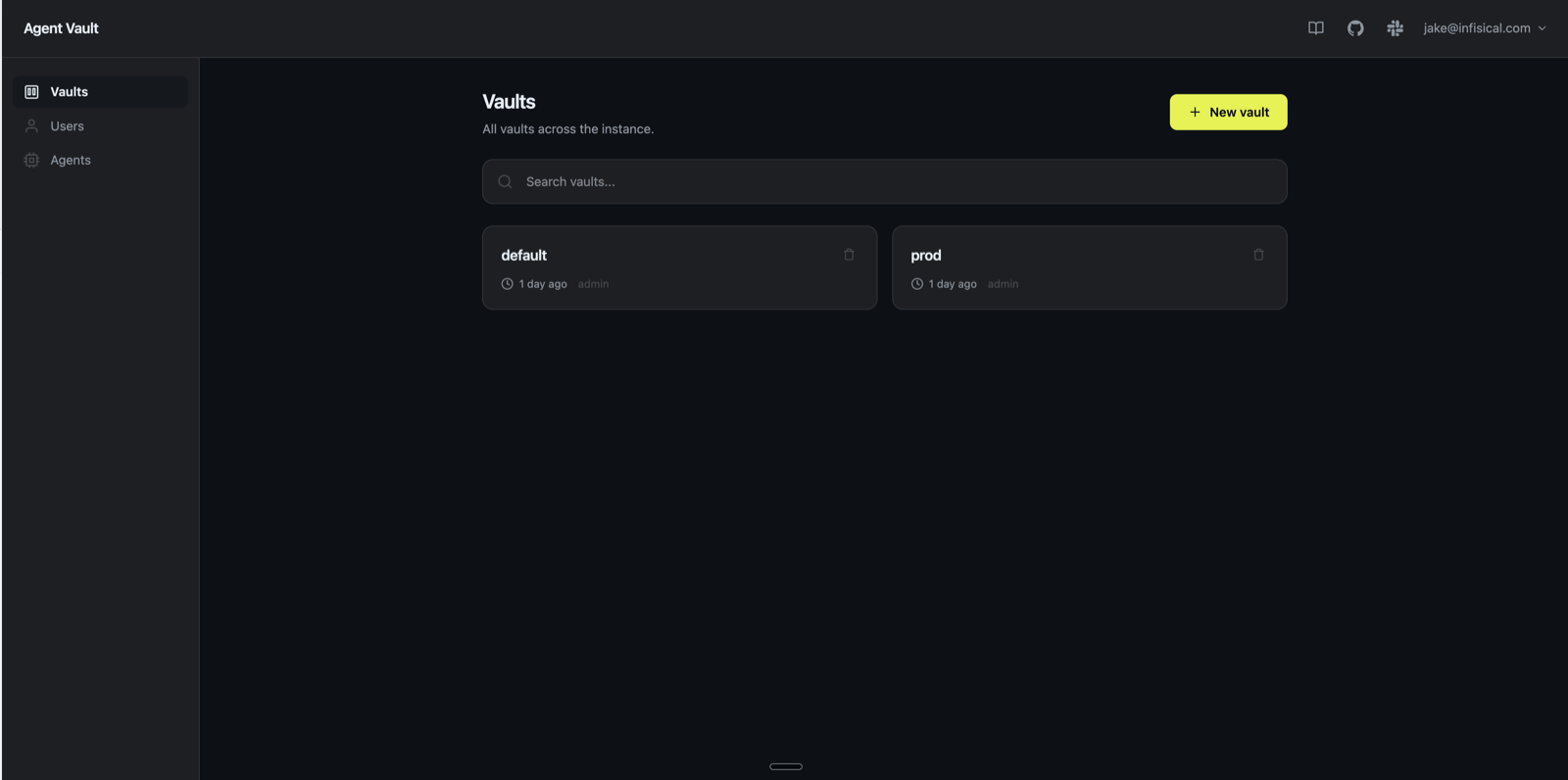
  • A vault is a named isolation boundary. We’ll create prod.
  • A credential is one secret value stored under a name (e.g. ANTHROPIC_API_KEY = sk-ant-...). Encrypted at rest.
  • A service is the wiring for one upstream host: host pattern + auth mode + substitution rules that reference credentials by name.
Credentials store values. Services define wiring. At request time, Agent Vault matches the service by host, looks up the named credential, and rewrites the wire bytes before forwarding.
3

Create the prod vault

Vaults → New vault → prod → Create.Agent Vault UI showing the prod vault
4

Add credentials

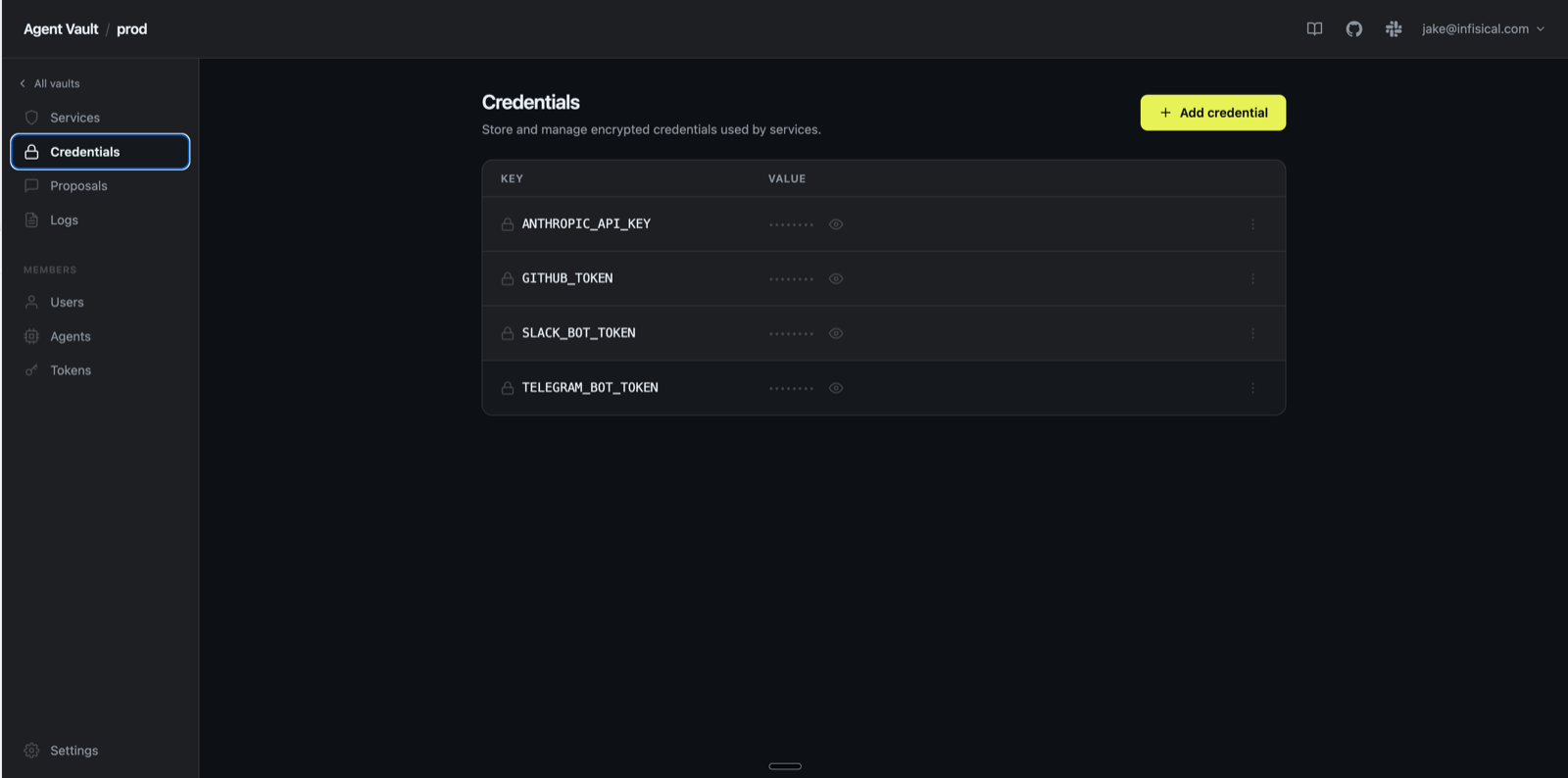
In the prod vault, Credentials tab → Add credential. This guide configures four credentials; Anthropic (model) and Telegram (inbound channel) are required for the rest of the guide to work, the others are illustrative. Substitute or add credentials for whatever services you want Hermes to call.
KeyValue
ANTHROPIC_API_KEYAnthropic API key (sk-ant-...)
GITHUB_TOKENGitHub PAT with repo scope
SLACK_BOT_TOKENSlack bot token (xoxb-...)
TELEGRAM_BOT_TOKENPlaceholder; you create the real bot in the next section
If you’re using Slack, the bot needs chat:write, channels:read, and groups:read scopes. Reinstall the app after adding them so the token picks them up, and invite the bot to your target channel.Credentials tab in the prod vault with four credentials added
5

Add services

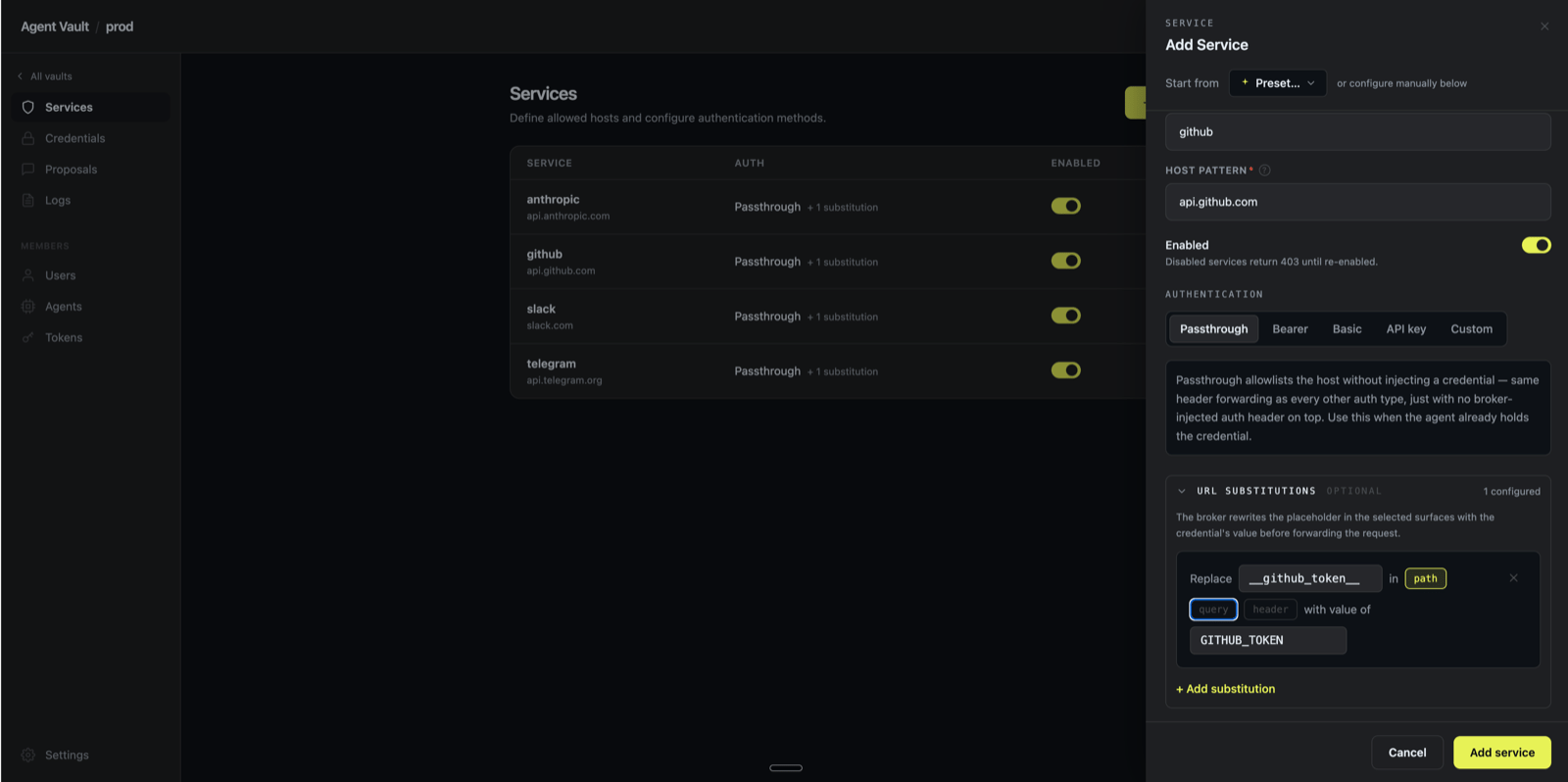
Services tab → + Add service. For each row below: fill Name and Host, set Authentication to Passthrough, then scroll to URL Substitutions and click + Add substitution. Paste the placeholder, tick exactly one Surface box (untick the others), select the credential. Save.Add Service side panel with the URL Substitutions form openEach substitution rule tells Agent Vault to scan that surface in outbound requests for the placeholder string and swap it for the credential’s value before forwarding. Hermes emits placeholders on the wire; the real keys never leave av-broker.
NameHostPlaceholderSurfaceCredential
anthropic-brainapi.anthropic.com__anthropic_api_key__headerANTHROPIC_API_KEY
githubapi.github.com__github_token__headerGITHUB_TOKEN
slackslack.com/*__slack_bot_token__headerSLACK_BOT_TOKEN
telegramapi.telegram.org__telegram_bot_token__pathTELEGRAM_BOT_TOKEN
Three services use header (the upstream reads the credential from an HTTP header). Telegram uses path because its Bot API encodes the token inline in the URL (/bot<TOKEN>/sendMessage).
Placeholder strings are exact-match. If an upstream returns 401, check the failing request’s Credential keys field in the AV UI’s Logs tab; an empty value means the substitution didn’t fire.

5. Create the Telegram bot

1

Mint the bot via BotFather

In Telegram, message @BotFather. Send /newbot, give it a display name, then a username ending in bot. BotFather returns a token: 123456789:ABC-DEF....
2

Paste the real token into Agent Vault

In the AV UI: prodCredentialsTELEGRAM_BOT_TOKEN → edit → paste the BotFather token → save.
3

Get your numeric Telegram user ID

Message @userinfobot, send /start. Copy the numeric Id: value.

6. Connect Hermes

1

SSH into hermes-vps and install the Agent Vault CLI

In a fresh terminal on your laptop (leave the SSH tunnel to av-broker running):
ssh -i ~/.ssh/agent-vault-lab root@<hermes-vps-public-ip>
curl --proto '=https' --proto-redir '=https' --tlsv1.2 -fsSL https://get.agent-vault.dev | sh
Every command from here through starting the gateway runs on hermes-vps. On this box the AV CLI is a client wrapper; no server runs here.
2

Install Hermes and walk the setup wizard

curl -fsSL https://raw.githubusercontent.com/NousResearch/hermes-agent/main/scripts/install.sh | bash
The install script drops Hermes at /usr/local/lib/hermes-agent/ and then launches an interactive four-question setup wizard. Answer:
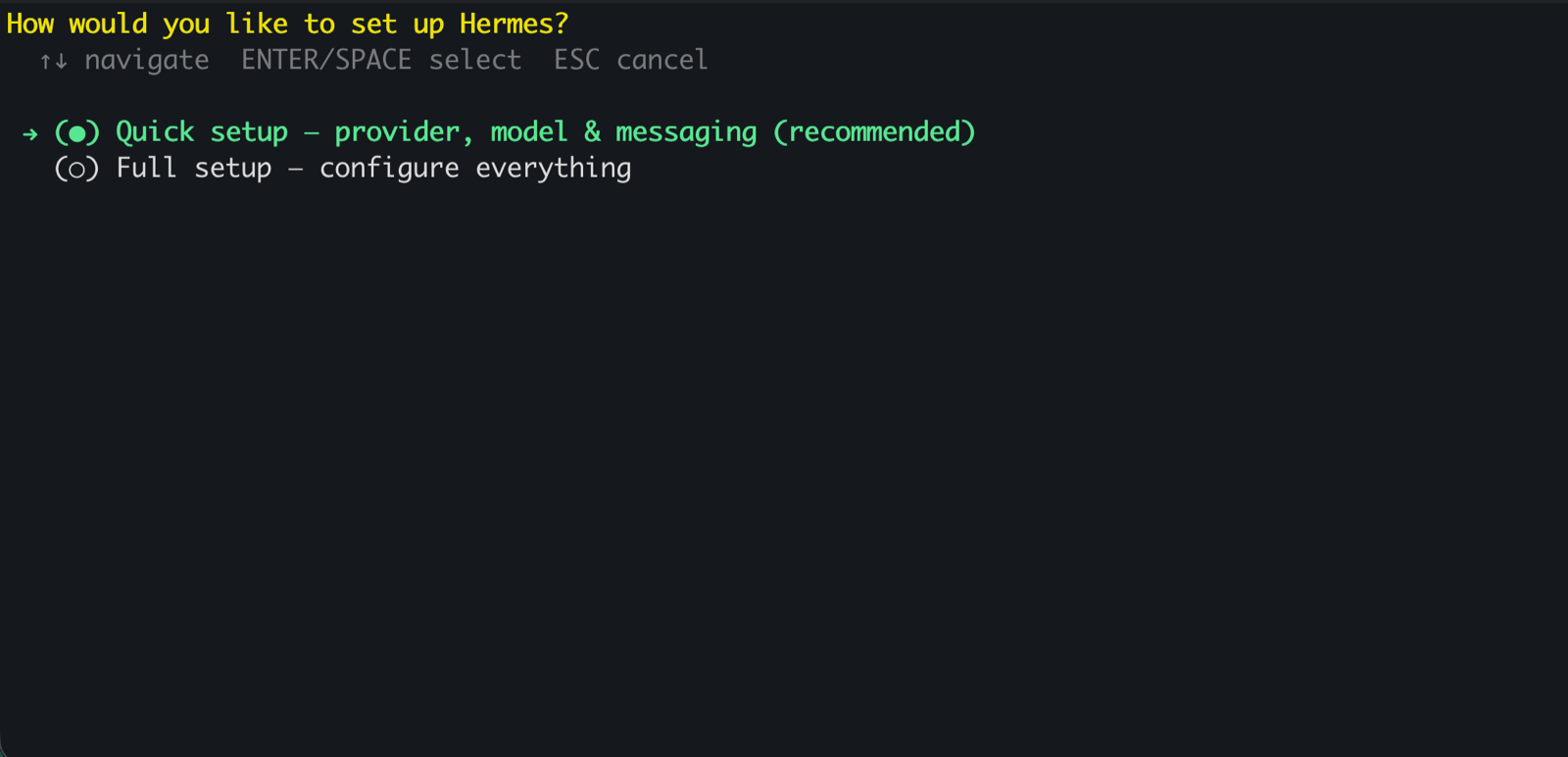
  1. How would you like to set up Hermes?Quick setup. Hermes first-launch setup: Quick setup vs Full setup
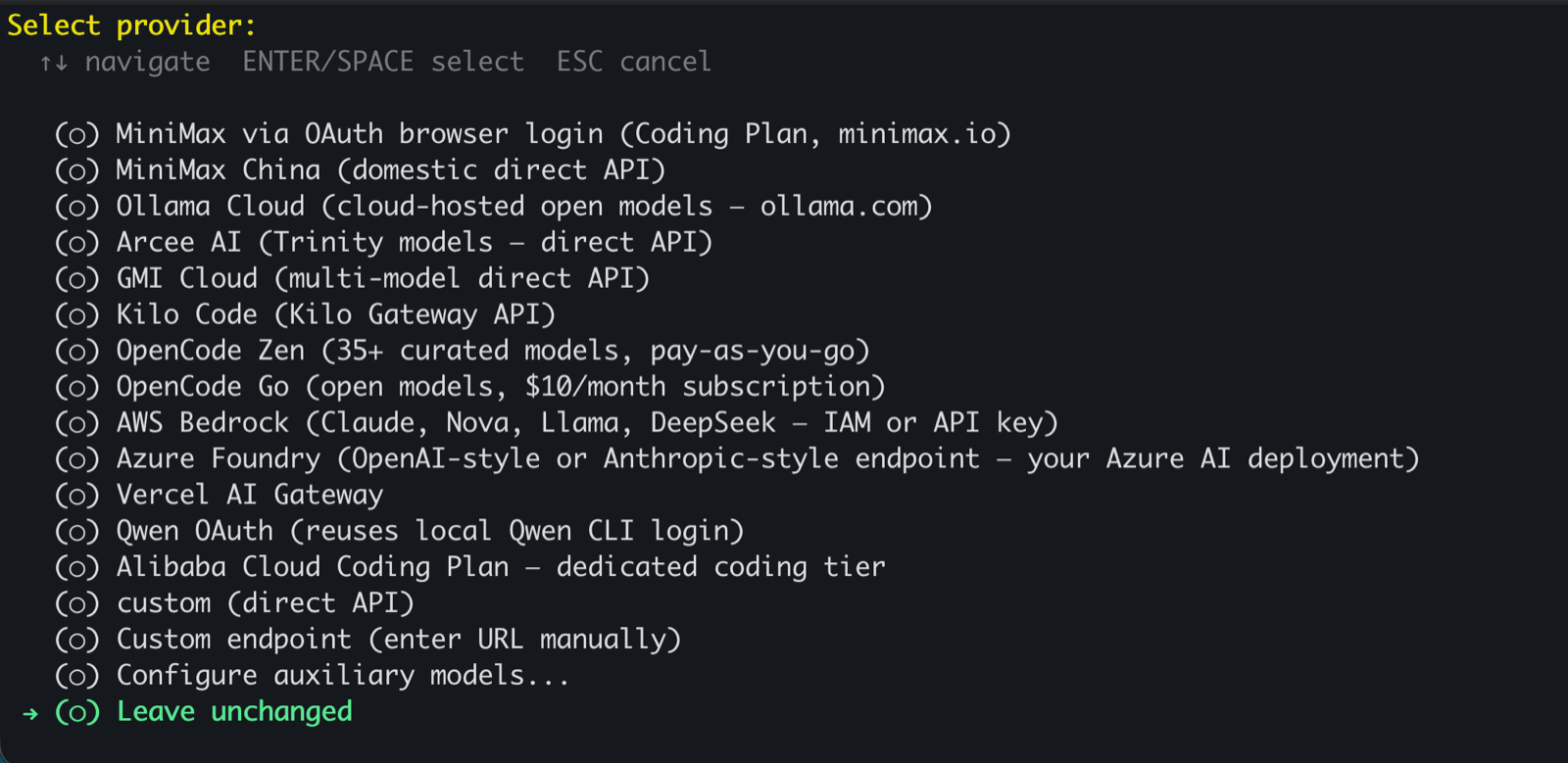
  2. Select provider: scroll to the bottom and choose Leave unchanged. Hermes provider list with Leave unchanged selected at the bottom
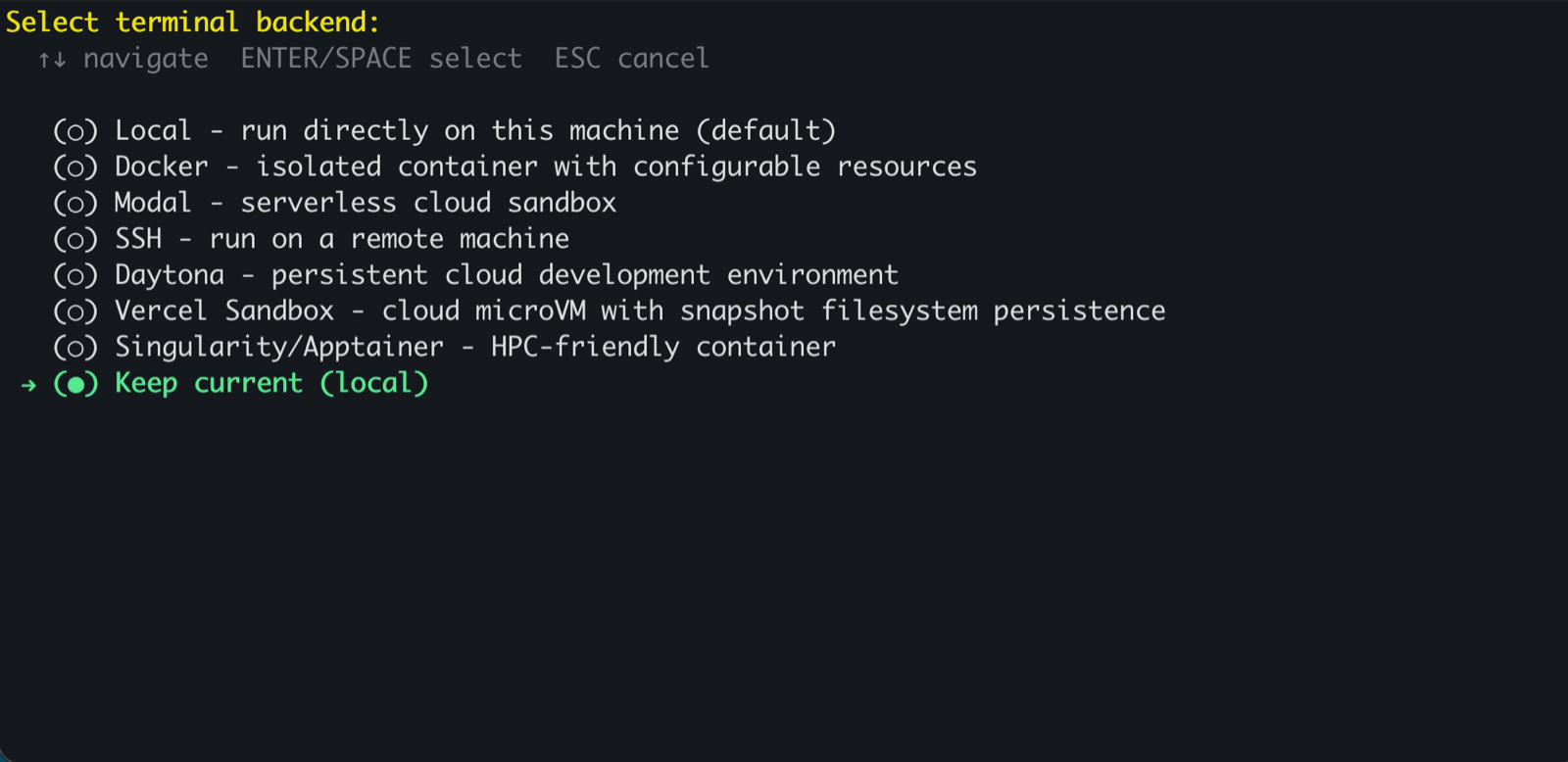
  3. Select terminal backend: Keep current (local). Hermes terminal backend list with Keep current local selected
  4. Connect a messaging platform? Skip (set up later via agent-vault run -- hermes gateway setup). You’ll configure Telegram in a later section using the gateway wizard. Hermes messaging platform prompt with Skip selected
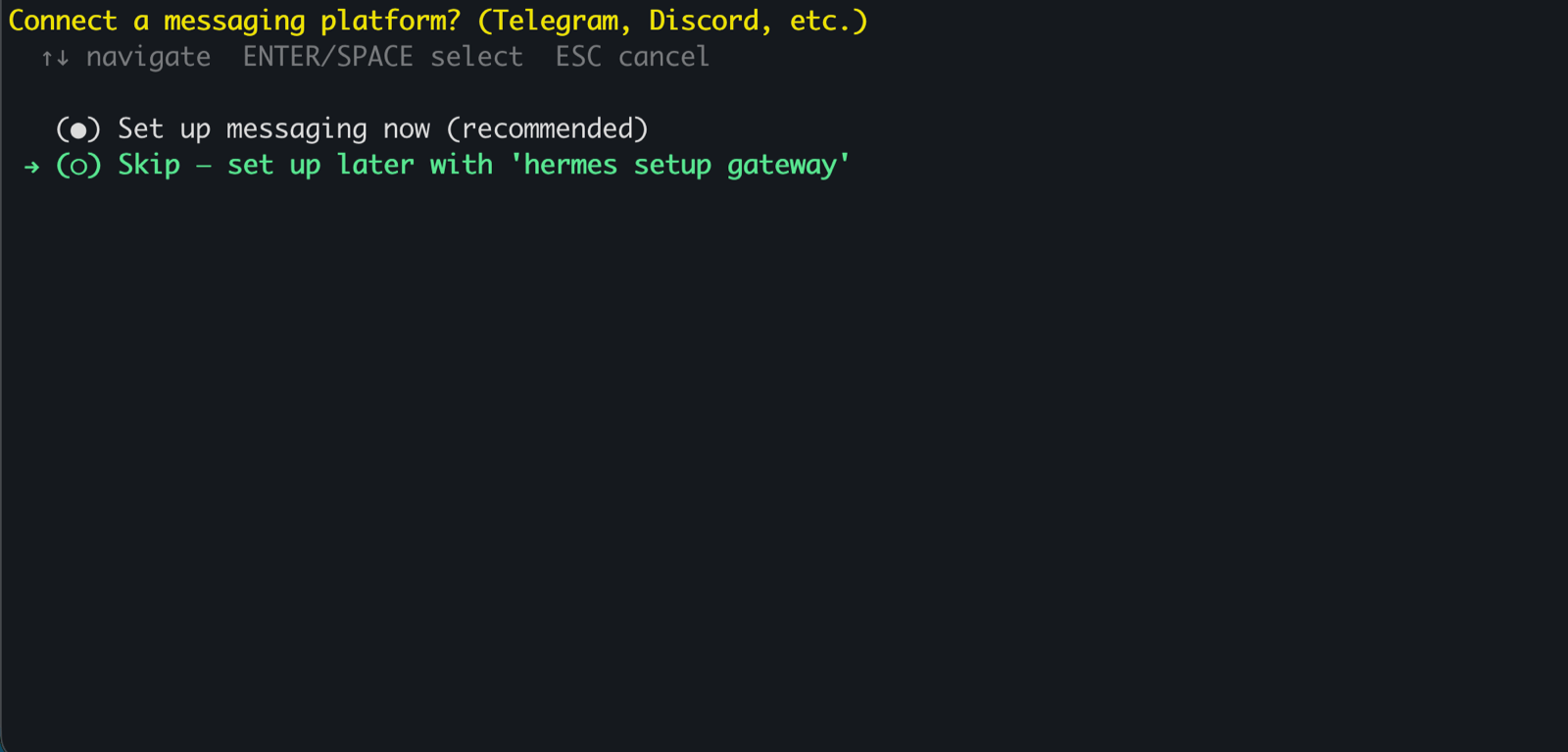
The wizard exits and you’re back at the shell prompt.
3

Write placeholder credential lines into Hermes's .env

cat > ~/.hermes/.env <<'EOF'
ANTHROPIC_API_KEY=__anthropic_api_key__
GITHUB_TOKEN=__github_token__
SLACK_BOT_TOKEN=__slack_bot_token__
TELEGRAM_BOT_TOKEN=__telegram_bot_token__
EOF
These placeholders match the substitution rules you created earlier.
4

Mint an agent token (back to your laptop's AV UI)
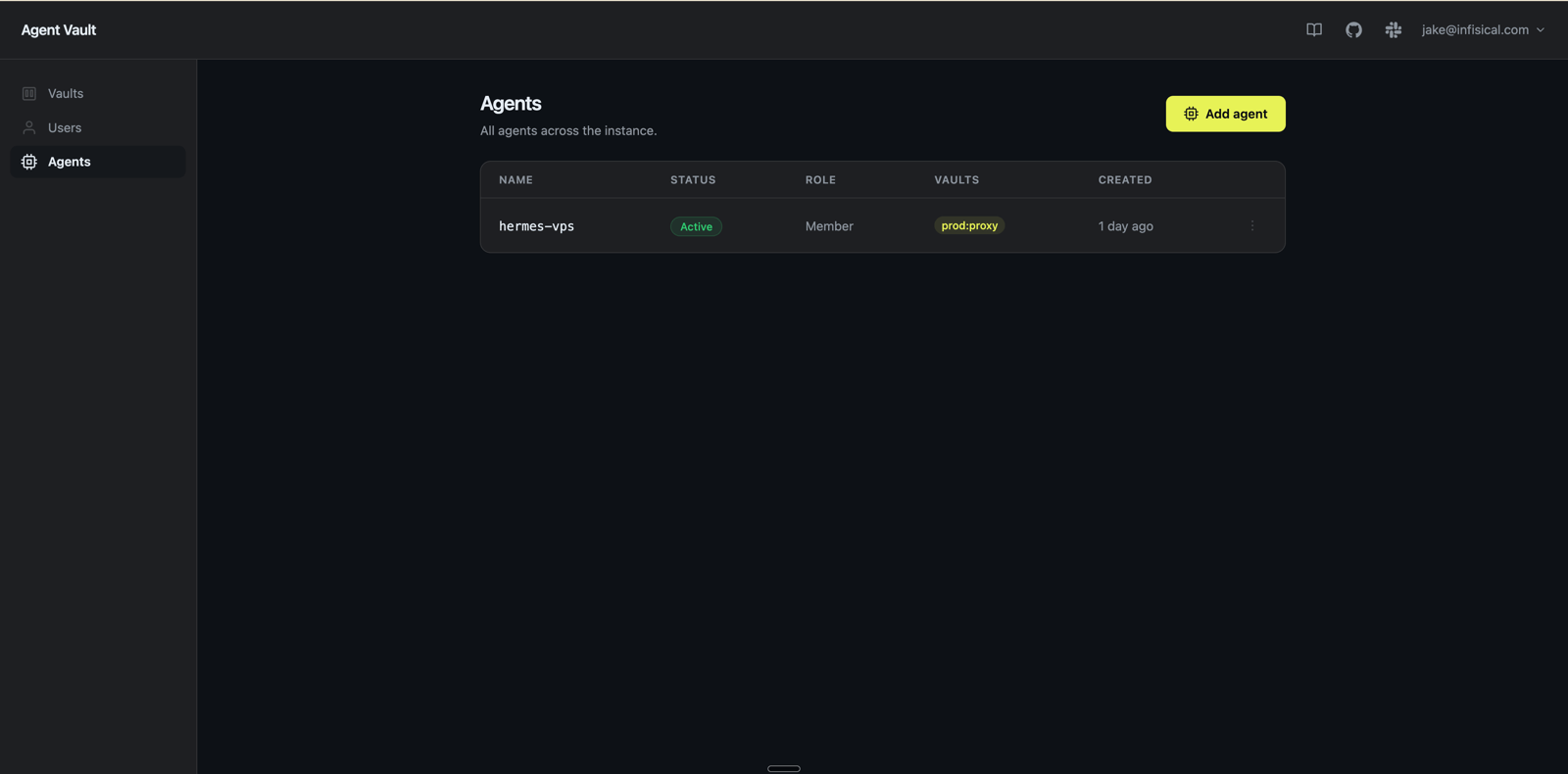
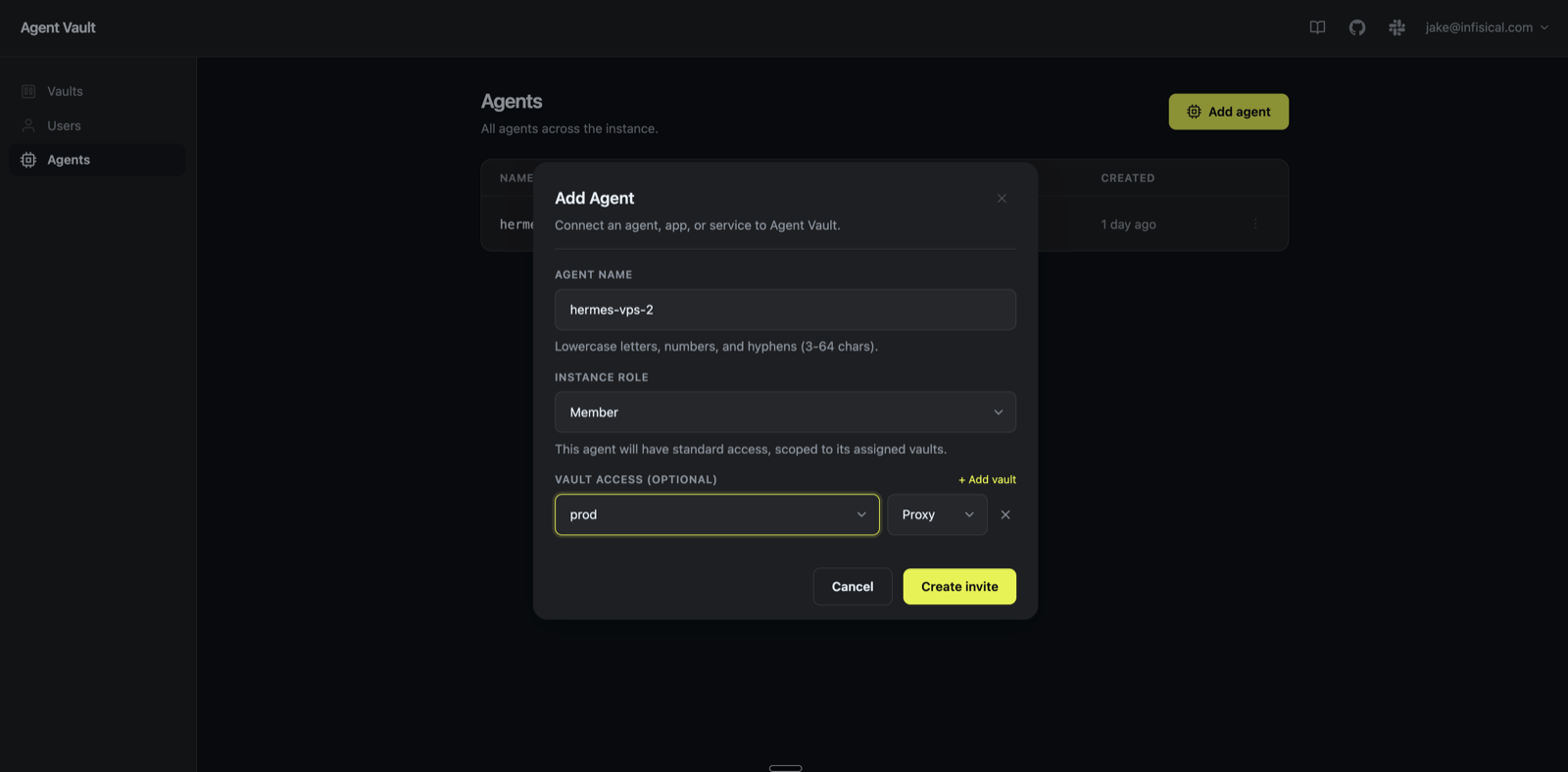
Switch to the AV UI tab in your laptop browser. Sidebar: All Agents → Add agent.All Agents tab with the Add agent button highlightedIn the modal:
  • Agent name: hermes-vps
  • Vault access: click + Add vault, pick prod, leave role at proxy
  • Click Add Add Agent modal with hermes-vps name and prod vault assignment
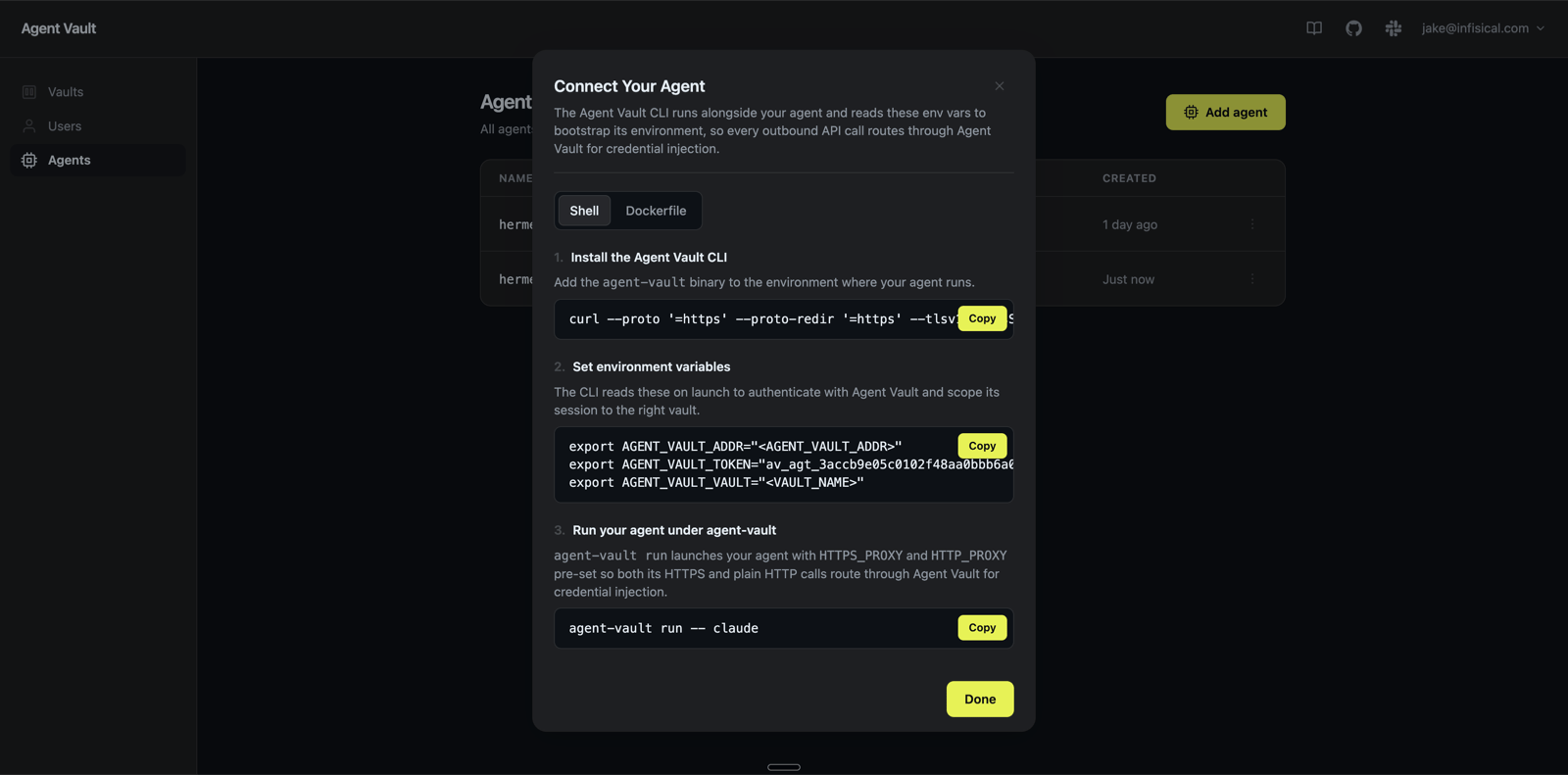
The modal flips to the Connect Your Agent view with a copyable snippet of three export lines. The agent token and the prod vault name are pre-filled; the broker address renders as the placeholder <AGENT_VAULT_ADDR> (the server was launched without that env var set, so the UI can’t infer it). Click the inline Copy button. You’ll paste it in the next step.Connect Your Agent modal with the three-line export snippet
5

Export the three AV env vars

Back on the hermes-vps terminal, paste the snippet. Replace <AGENT_VAULT_ADDR> with http://10.0.0.2:14321:
export AGENT_VAULT_ADDR="<AGENT_VAULT_ADDR>"   # ← replace with http://10.0.0.2:14321
export AGENT_VAULT_TOKEN="<long-token-from-UI>"
export AGENT_VAULT_VAULT="prod"
Each one answers a different question: which broker (ADDR), who is calling (TOKEN, revocable from the UI), and which set of credentials and services applies (VAULT).
6

Sanity-check the proxy path

agent-vault run -- hermes
Look for agent-vault: routing HTTP/HTTPS through MITM proxy (10.0.0.2:14322) near the top of the output. Send a prompt to confirm Claude replies through the broker, then Ctrl-C to quit.

7. Configure the Hermes gateway

The gateway is Hermes’s always-on messaging daemon. Configure it via a wizard wrapped in agent-vault run so its environment has the broker config.
1

Launch the wizard

agent-vault run -- hermes gateway setup
2

Walk the wizard

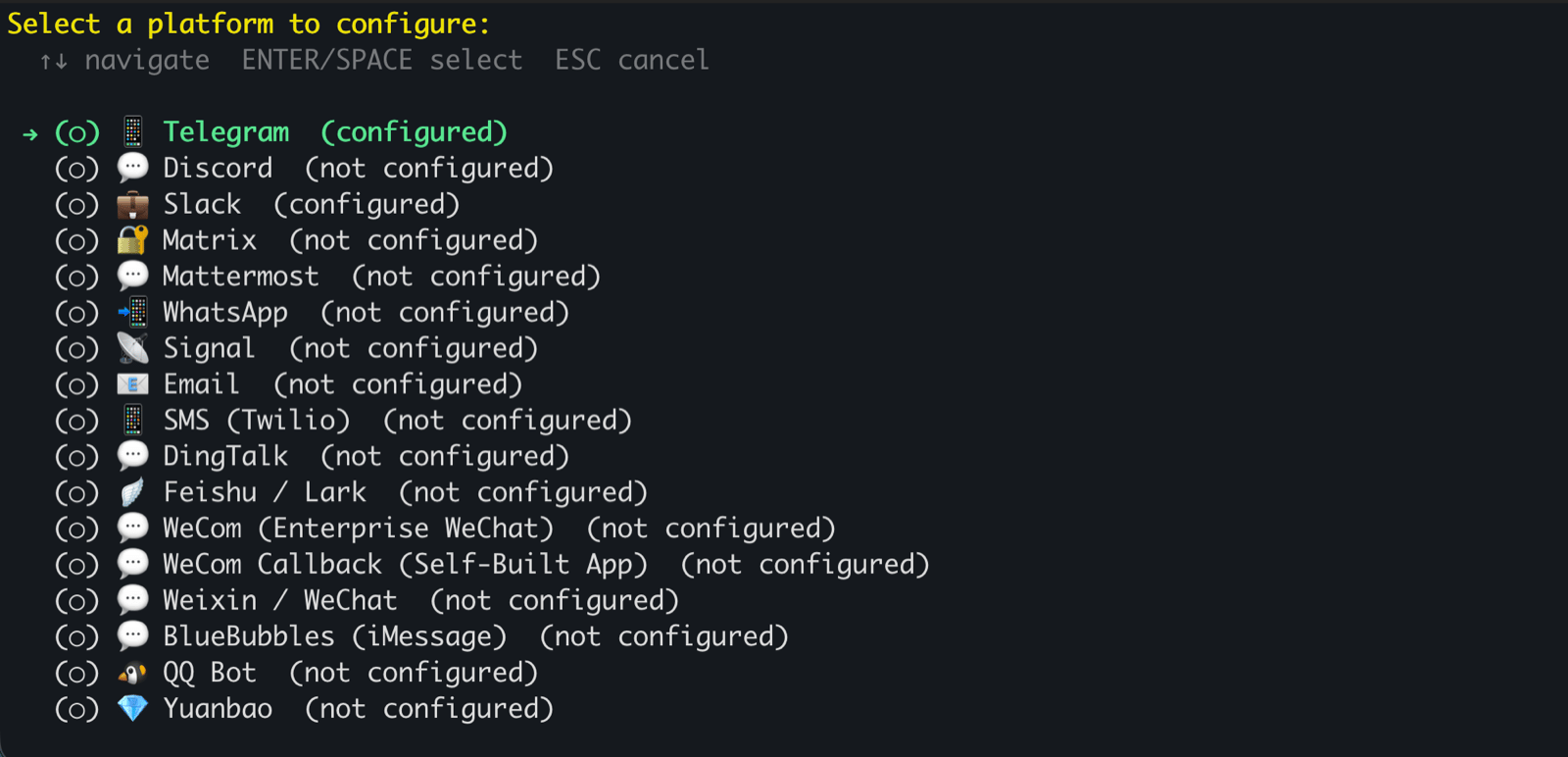
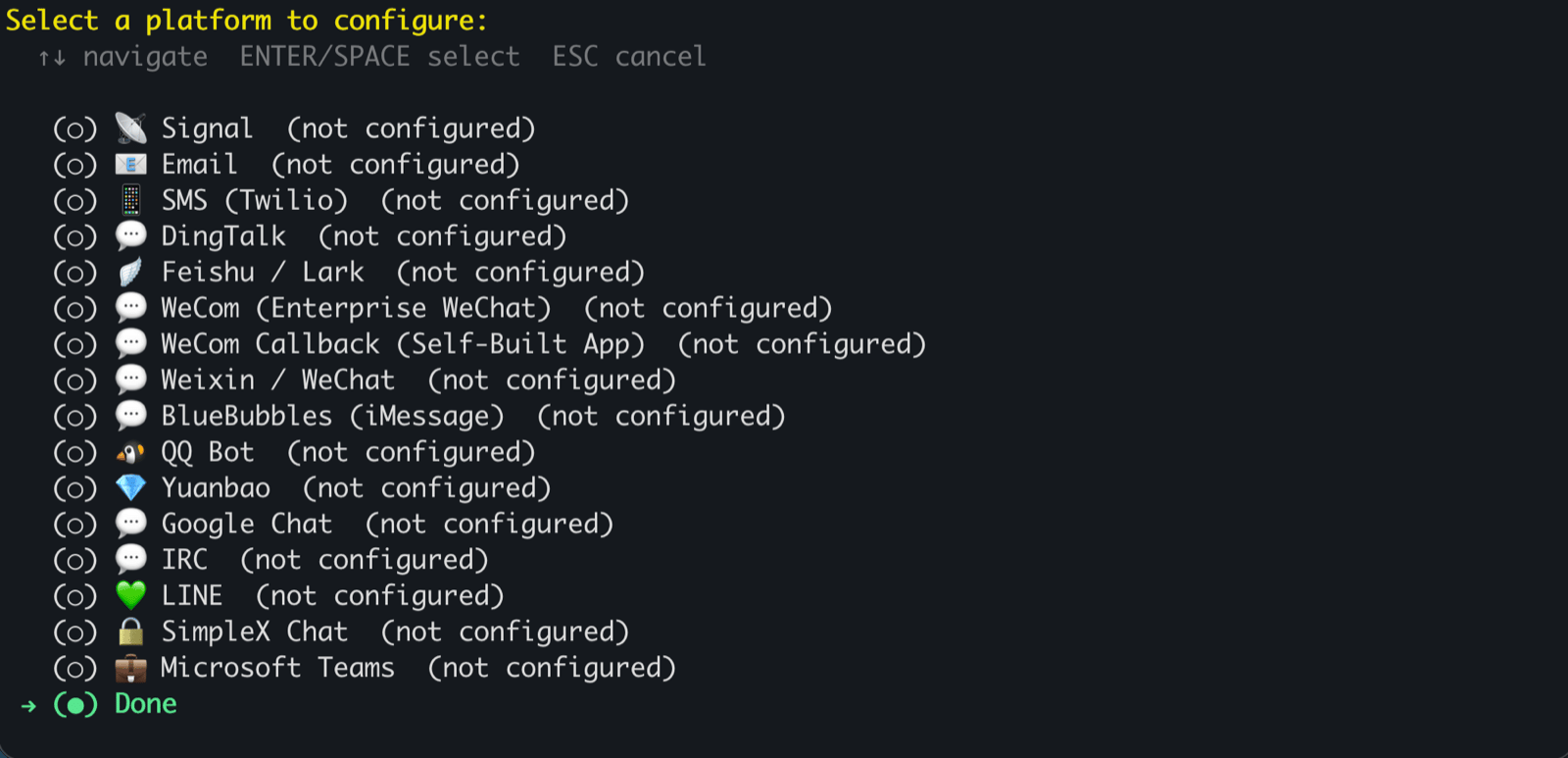
Telegram already shows as configured in the platform list because the placeholder line you wrote to ~/.hermes/.env earlier is enough for the wizard to consider it set up. You’ll skip reconfiguring the token and just add the user allowlist.
  1. Select a platform to configureTelegram (shown as (configured)). Hermes gateway wizard platform list with Telegram shown as configured
  2. Reconfigure Telegram?N.
  3. Add allowed users now?Y.
  4. Allowed user IDs (comma-separated) → your numeric Telegram user ID from @userinfobot. This locks the bot to your account.
  5. Select a platform to configure → scroll to the bottom and select Done. Hermes gateway wizard platform list with Done at the bottom
  6. Install the gateway as a systemd service?Y.
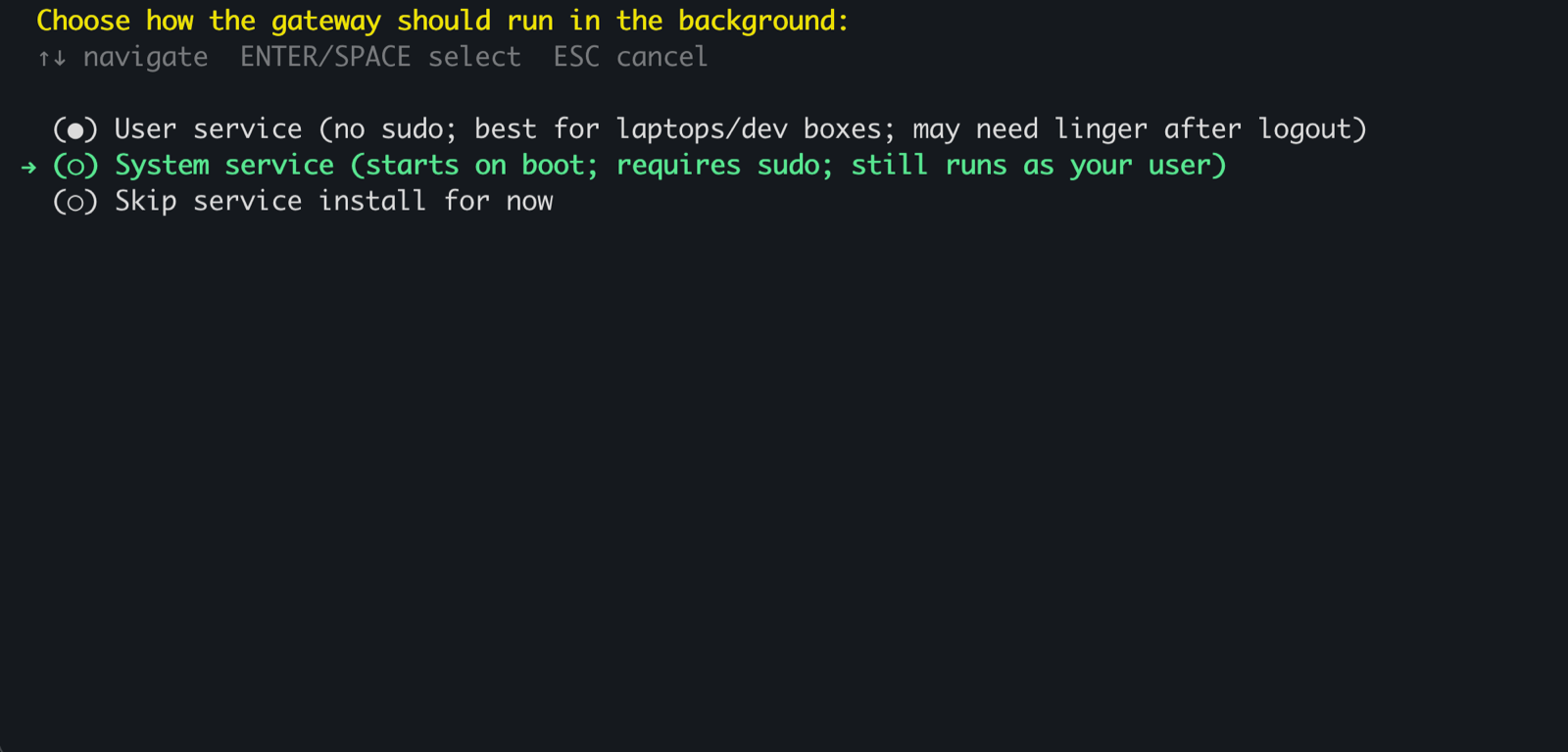
  7. Choose how the gateway should runSystem service (the second option). System service writes the unit to /etc/systemd/system/ and starts on boot natively. No loginctl enable-linger needed. Hermes gateway wizard service-type prompt with System service selected
  8. Run as which user?root.
  9. Start the service now?N. The unit has no Agent Vault env yet; the next section wires it before starting. Hermes gateway wizard start-now prompt with No selected
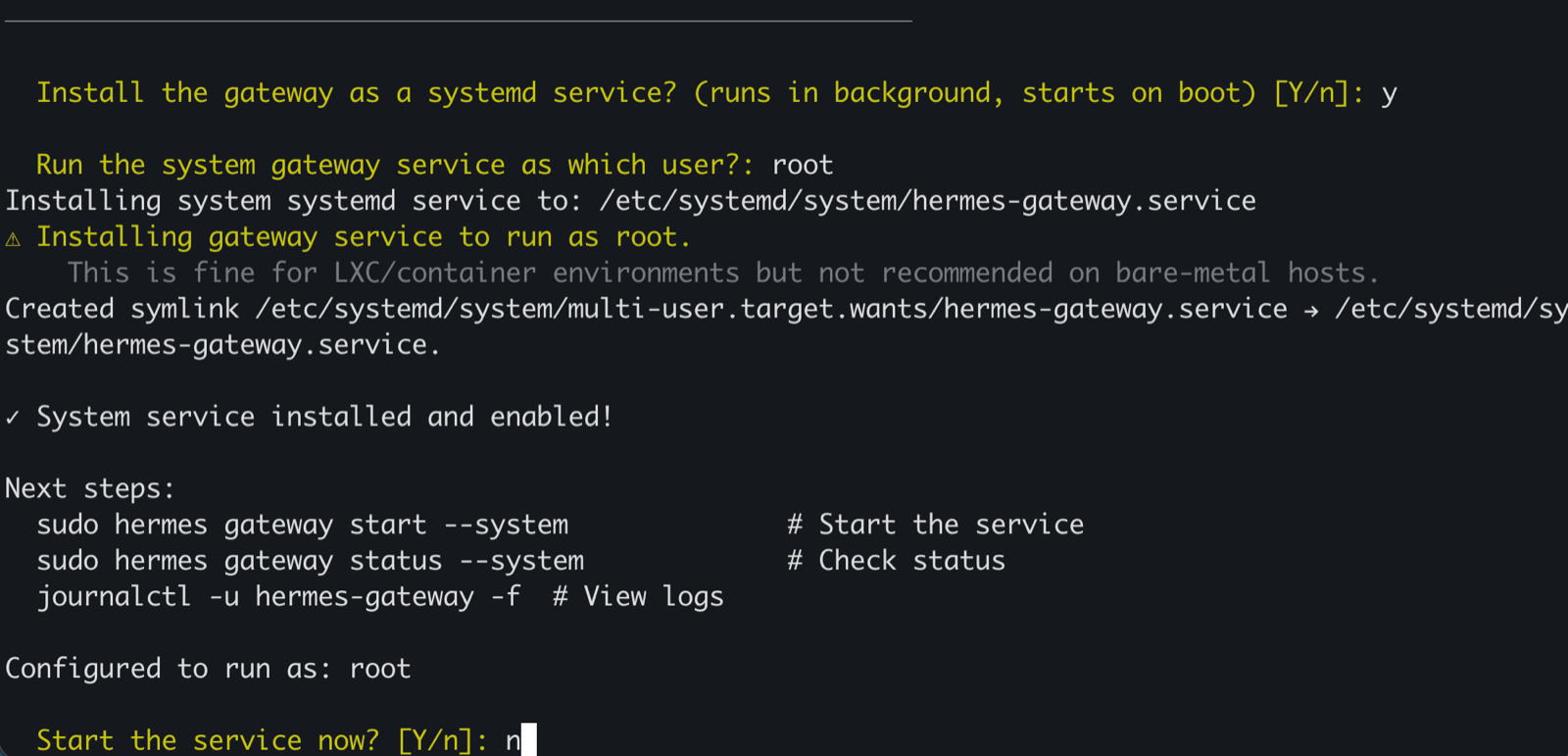
The installer writes /etc/systemd/system/hermes-gateway.service and enables it on boot.

8. Start the gateway daemon

The unit needs Agent Vault’s environment wired explicitly, since systemd doesn’t inherit it from your shell.
1

Paste 1: write /root/.hermes/gateway.env

In the SSH shell on hermes-vps where $AGENT_VAULT_TOKEN is still set:
if [ -z "$AGENT_VAULT_TOKEN" ]; then
  echo "✗ AGENT_VAULT_TOKEN not set; re-export from the Connect Hermes section"
else
  cat > /root/.hermes/gateway.env <<EOF
AGENT_VAULT_ADDR=http://10.0.0.2:14321
AGENT_VAULT_TOKEN=$AGENT_VAULT_TOKEN
AGENT_VAULT_VAULT=prod
HTTPS_PROXY=http://$AGENT_VAULT_TOKEN@10.0.0.2:14322
HTTP_PROXY=http://$AGENT_VAULT_TOKEN@10.0.0.2:14322
REQUESTS_CA_BUNDLE=/root/.agent-vault/mitm-ca.pem
SSL_CERT_FILE=/root/.agent-vault/mitm-ca.pem
NODE_EXTRA_CA_CERTS=/root/.agent-vault/mitm-ca.pem
CURL_CA_BUNDLE=/root/.agent-vault/mitm-ca.pem
GIT_SSL_CAINFO=/root/.agent-vault/mitm-ca.pem
DENO_CERT=/root/.agent-vault/mitm-ca.pem
NODE_USE_ENV_PROXY=1
EOF
  chmod 600 /root/.hermes/gateway.env
  ls -la /root/.hermes/gateway.env
fi
Expect -rw------- 1 root root <~600–700> ... gateway.env. If you see the warning instead, re-run the export AGENT_VAULT_TOKEN=... line from the previous section.
2

Paste 2: systemd drop-in

mkdir -p /etc/systemd/system/hermes-gateway.service.d
cat > /etc/systemd/system/hermes-gateway.service.d/override.conf <<'EOF'
[Service]
EnvironmentFile=/root/.hermes/gateway.env
EOF
systemctl daemon-reload
cat /etc/systemd/system/hermes-gateway.service.d/override.conf
Expect two lines from the trailing cat: [Service] and EnvironmentFile=/root/.hermes/gateway.env.
3

Paste 3: start and verify

systemctl start hermes-gateway
sleep 3
systemctl status hermes-gateway --no-pager | head -20
ss -tnp state established | grep -E 'python|14322' || echo "(none yet; wait a few seconds and re-run)"
systemctl status should show Active: active (running), a Drop-In: line, and Main PID: ... (python). ss should show one or two rows pointing at 10.0.0.2:14322. That’s the Telegram long-poll going through Agent Vault.
If you configured Slack, the SLACK_APP_TOKEN not set warning in journalctl is expected and harmless. Slack outbound still works; only inbound (Socket Mode) is skipped.

If the service fails to start

journalctl -u hermes-gateway -n 50 --no-pager
head -5 /root/.hermes/gateway.env
Usual culprit: an empty AGENT_VAULT_TOKEN made Paste 1 skip writing the env file. Re-export, redo Paste 1, then systemctl daemon-reload && systemctl restart hermes-gateway.

9. Lock down egress (optional)

Restrict hermes-vps outbound to av-broker only. A compromised Hermes then has nowhere to exfiltrate.
1

Create and attach the egress firewall

Firewalls → Create Firewall, name hermes-egress. One outbound rule: TCP, destination 10.0.0.0/24, any port.In Apply To → Servers, select only hermes-vps. Attaching this to av-broker breaks the brokered requests.
2

Verify

From hermes-vps:
curl --max-time 5 https://api.anthropic.com/v1/models
That should time out. Proxied calls through 10.0.0.2:14322 still work.

10. Try it end-to-end

Send any prompt to your Telegram bot. Hermes replies, with every outbound call routed through 10.0.0.2:14322. To exercise all four brokered services in one prompt:
Summarize the last five commits in <owner>/<repo> and post the summary to #ai-updates on Slack.
To watch brokered traffic in real time, tail the gateway journal on hermes-vps:
journalctl -u hermes-gateway -f
Open Logs in the AV UI to see each request’s matched service and substituted credential.

11. Revoke and recover

1

Revoke the agent

In the AV UI: Agents → hermes-vps → Rotate (or Delete).
2

Send another Telegram message

The next outbound call returns 401 from the broker. The placeholder strings on hermes-vps are inert without a valid agent token.
3

Re-issue to recover

Copy the rotated token, update AGENT_VAULT_TOKEN in /root/.hermes/gateway.env, then systemctl restart hermes-gateway. Hermes replies normally. See Agents → Rotating an agent token.

Cleanup

  1. Hetzner Cloud Console → Servers: delete av-broker and hermes-vps.
  2. Networks → av-net: delete.
  3. Firewalls: delete ssh-lockdown and hermes-egress.
  4. Rotate or revoke the real upstream API tokens you uploaded (they remain valid in their home services until you do).