

- Agent Vault running on one droplet, holding real Anthropic, GitHub, Notion, and Slack credentials encrypted at rest behind a master password.
- An OpenClaw gateway running on a second droplet, reachable via a Slack bot, with every outbound API call brokered through Agent Vault and revocable from the UI in one click.
Prerequisites
- A DigitalOcean account.
- API keys for the services you want OpenClaw to call. This guide uses Anthropic, GitHub, Notion, and Slack.
- A Slack workspace where you can install a custom app.
Architecture
av-broker holds real credentials, encrypted at rest behind your master password. openclaw-box holds placeholder strings (__anthropic_api_key__, etc.) and one revocable agent token.
1. Provision the VPS boxes
Generate an SSH key on your laptop
ssh command in this guide uses -i ~/.ssh/digital-ocean-1 to pin to this key.Upload the public key to DigitalOcean
~/.ssh/digital-ocean-1.pub, name it (e.g. digital-ocean-1), and save.Create the VPC
Create av-broker
| Panel | Setting |
|---|---|
| Region | Same region as the VPC |
| OS | Ubuntu 24.04 (LTS) |
| Droplet type | Basic, Regular ($6/mo, 1GB / 1vCPU is plenty for Agent Vault) |
| VPC Network | The VPC you just created |
| Authentication | SSH Key, tick digital-ocean-1 |
| Hostname | av-broker |
Create openclaw-box
- Hostname:
openclaw-box
Note the private IPs
av-brokeris10.108.0.3openclaw-boxis10.108.0.2
2. Restrict SSH and broker ports with a cloud firewall
Create and attach the firewall
openclaw-lab. Add three inbound rules:| Type | Port | Sources |
|---|---|---|
| TCP | 22 | Your laptop’s public IPv4 |
| TCP | 14321 | openclaw-box private IP (10.108.0.2) |
| TCP | 14322 | openclaw-box private IP (10.108.0.2) |
av-broker and openclaw-box.3. Install Agent Vault on av-broker
Install Agent Vault
/usr/local/bin/agent-vault.Launch the server inside tmux
--host 10.108.0.3 binds both listeners to the private NIC, keeping Agent Vault unreachable from the public internet.First-run prompts: master password, admin email, admin password.Detach with Ctrl-B then D. You’ll see [detached from session av] and drop back to your normal shell. The server keeps running inside the tmux session.tmux new -s av, restart with the same command, re-enter the master password. For zero-touch restart, set AGENT_VAULT_MASTER_PASSWORD, but note the password then lives in an env file.4. Configure the vault
Open an SSH tunnel
http://localhost:14321 in your laptop’s browser and sign in with the admin email and password you set during install.Understand vaults, credentials, and services
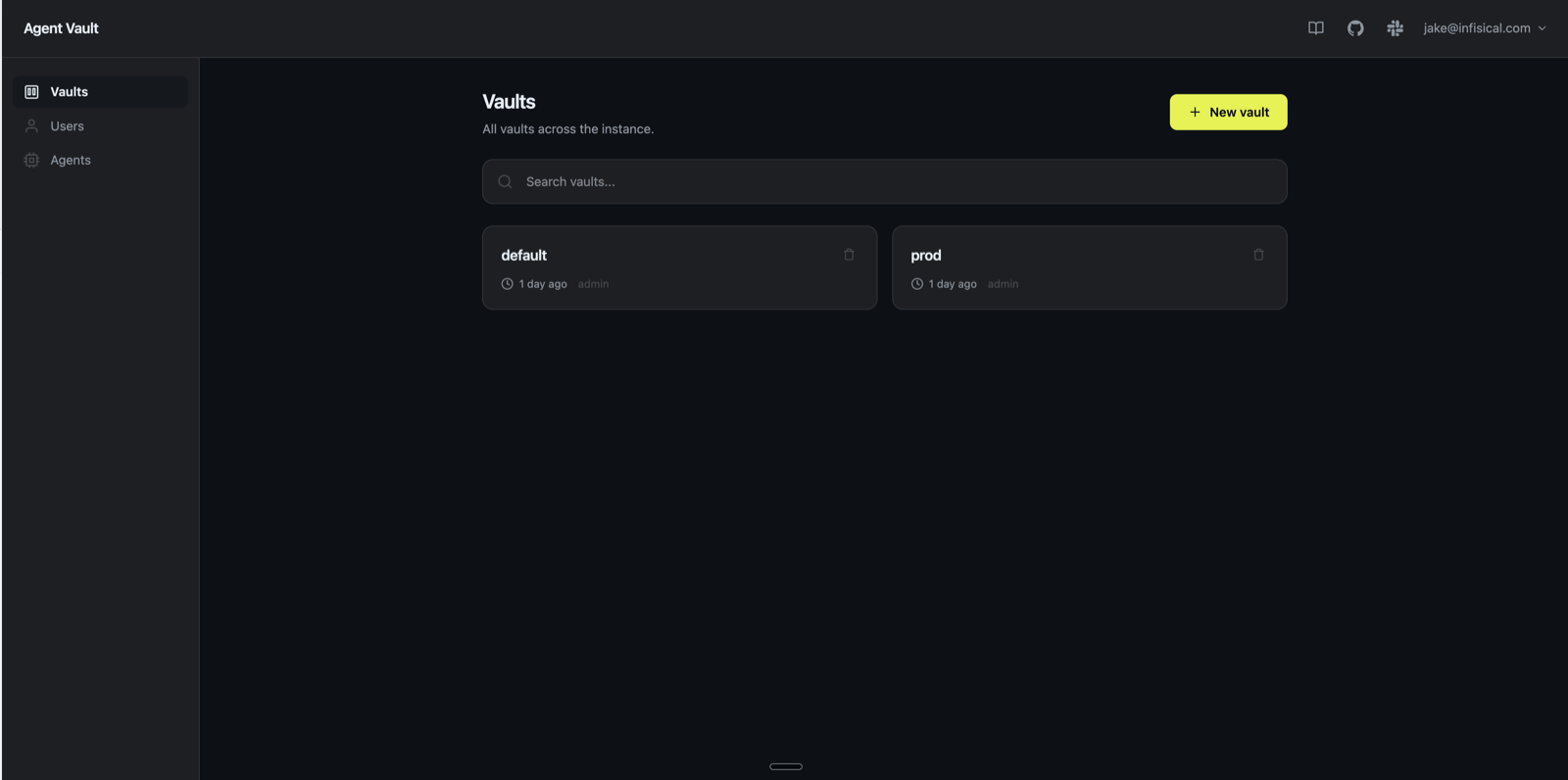
- A vault is a named isolation boundary. We’ll create
prod. - A credential is one secret value stored under a name (e.g.
ANTHROPIC_API_KEY = sk-ant-...). Encrypted at rest. - A service is the wiring for one upstream host: host pattern + auth mode + substitution rules that reference credentials by name.
Add credentials
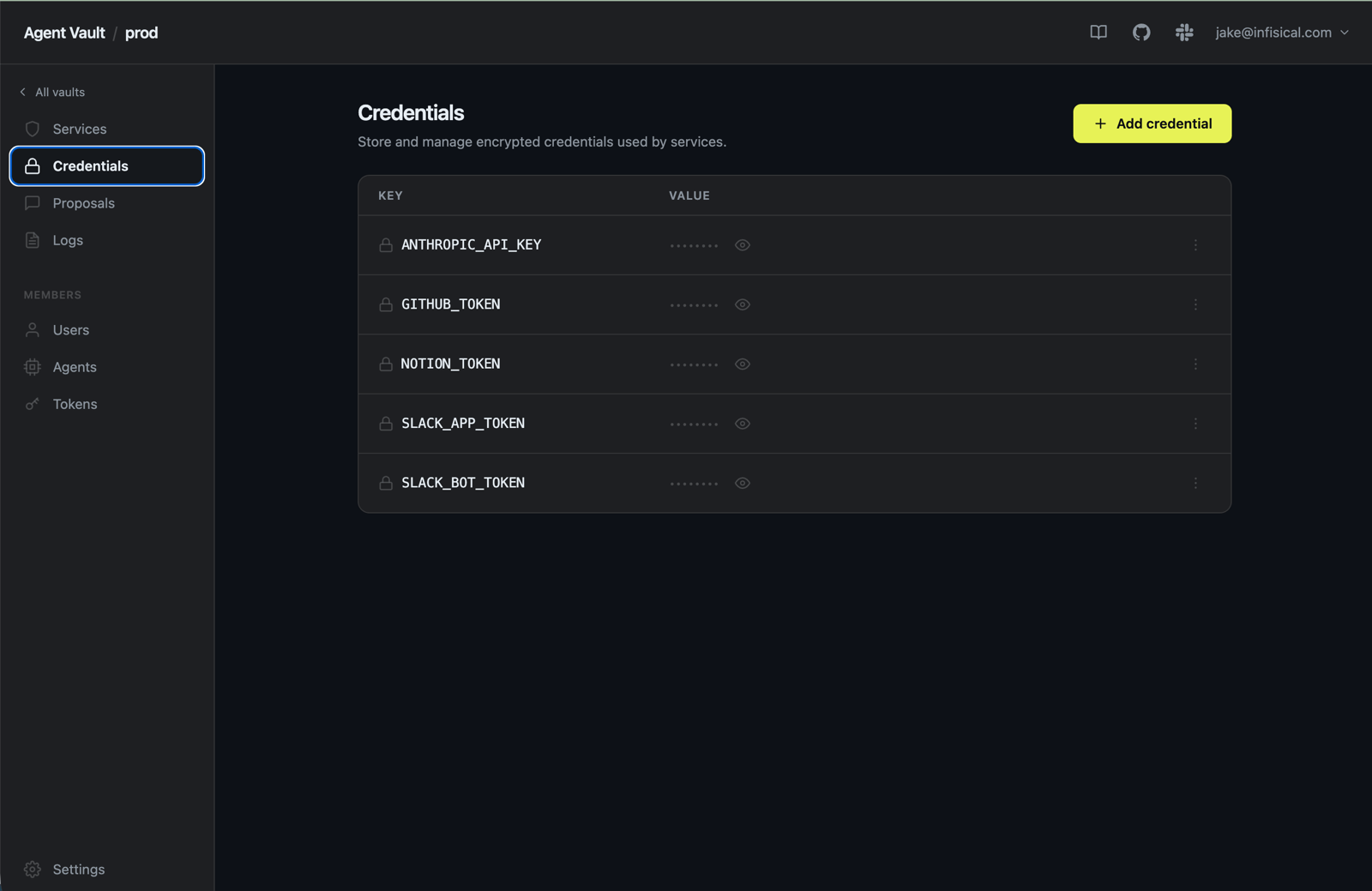
prod vault, Credentials tab → Add credential. Add real tokens for Anthropic, GitHub, and Notion now; the two Slack tokens are placeholders you’ll fill in the next section.| Key | Value |
|---|---|
ANTHROPIC_API_KEY | Anthropic API key (sk-ant-...) |
GITHUB_TOKEN | GitHub PAT with repo scope (ghp_...) |
NOTION_TOKEN | Notion internal integration token (ntn_...) |
SLACK_BOT_TOKEN | Placeholder; you create the Slack app in the next section |
SLACK_APP_TOKEN | Placeholder; you create the Slack app in the next section |
Add services
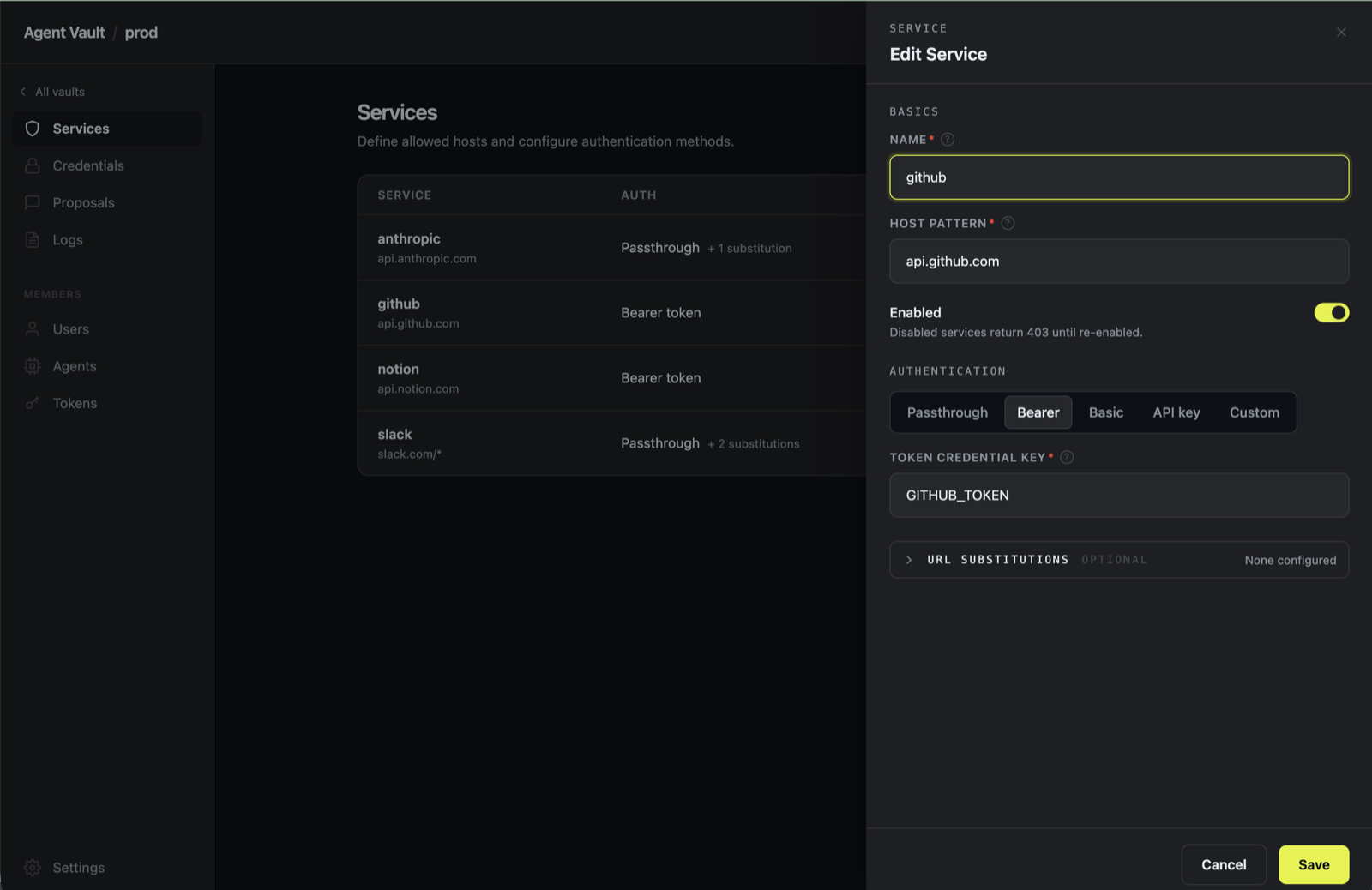
GITHUB_TOKEN) and skip the substitutions section. For Passthrough rows, scroll to URL Substitutions, click + Add substitution, paste the placeholder, tick the surface boxes listed, select the credential. Save.| Name | Host | Auth | Credential / Placeholder | Surface |
|---|---|---|---|---|
anthropic | api.anthropic.com | Passthrough | __anthropic_api_key__ → ANTHROPIC_API_KEY | header |
github | api.github.com | Bearer | Token key: GITHUB_TOKEN | n/a |
notion | api.notion.com | Bearer | Token key: NOTION_TOKEN | n/a |
slack | slack.com/* | Passthrough | __slack_bot_token__ → SLACK_BOT_TOKEN | header, body |
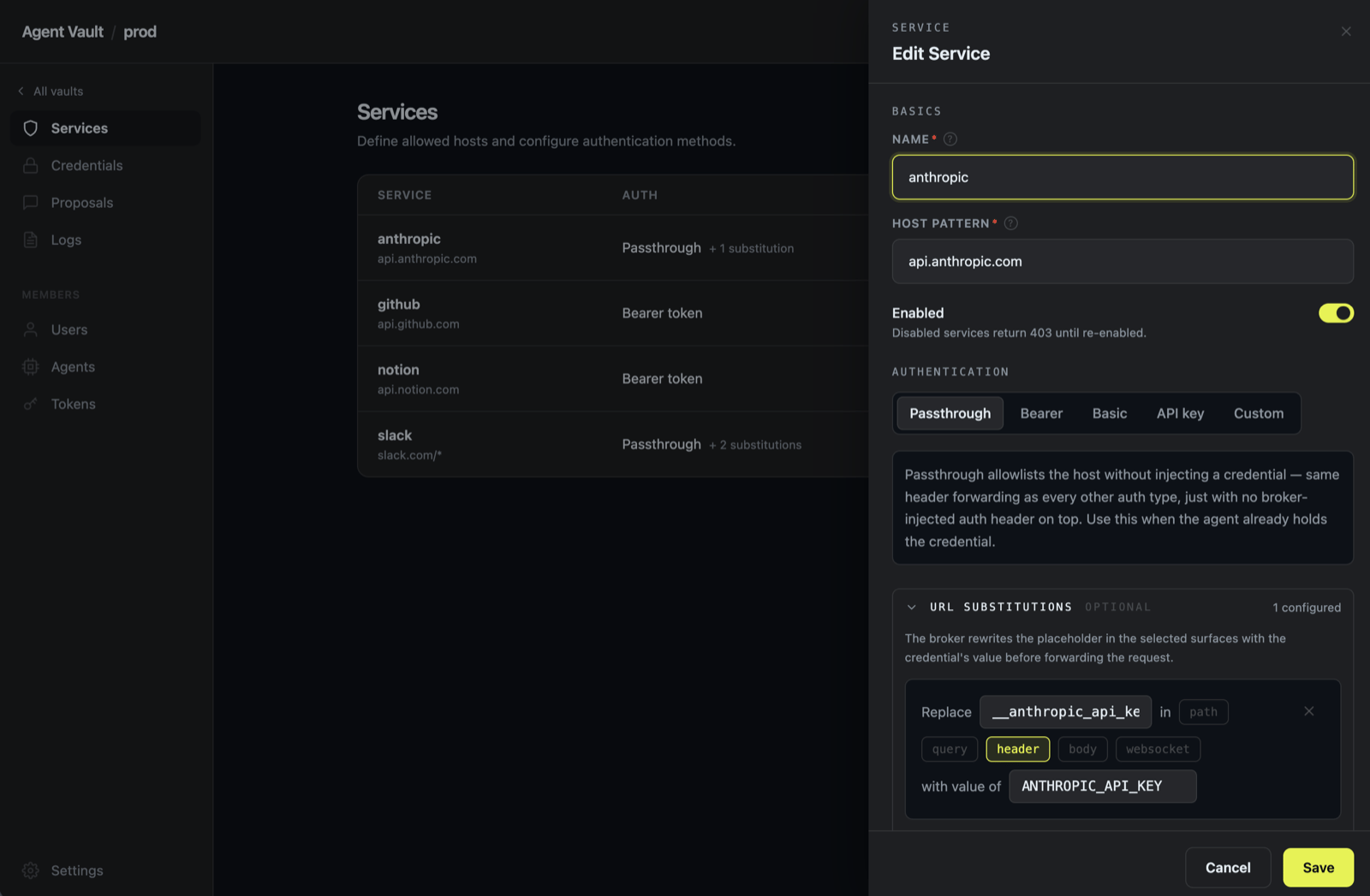
slack service carries a second substitution on the same service for the app token. After saving the first rule, click + Add substitution again on the same service:| Placeholder | Surface | Credential |
|---|---|---|
__slack_app_token__ | header, body | SLACK_APP_TOKEN |
github/notion, Passthrough + substitution for anthropic/slack); see Services for how each one works and when to pick it.header and body surfaces because @slack/web-api puts the bot token in the request body on its method-arg shape (client.auth.test({token})). Without body ticked, Bolt’s auth.test validation fails at boot and the bot silently stops responding to mentions.5. Install OpenClaw on openclaw-box
SSH into openclaw-box and install the Agent Vault CLI
av-broker running):Install OpenClaw and walk the setup wizard
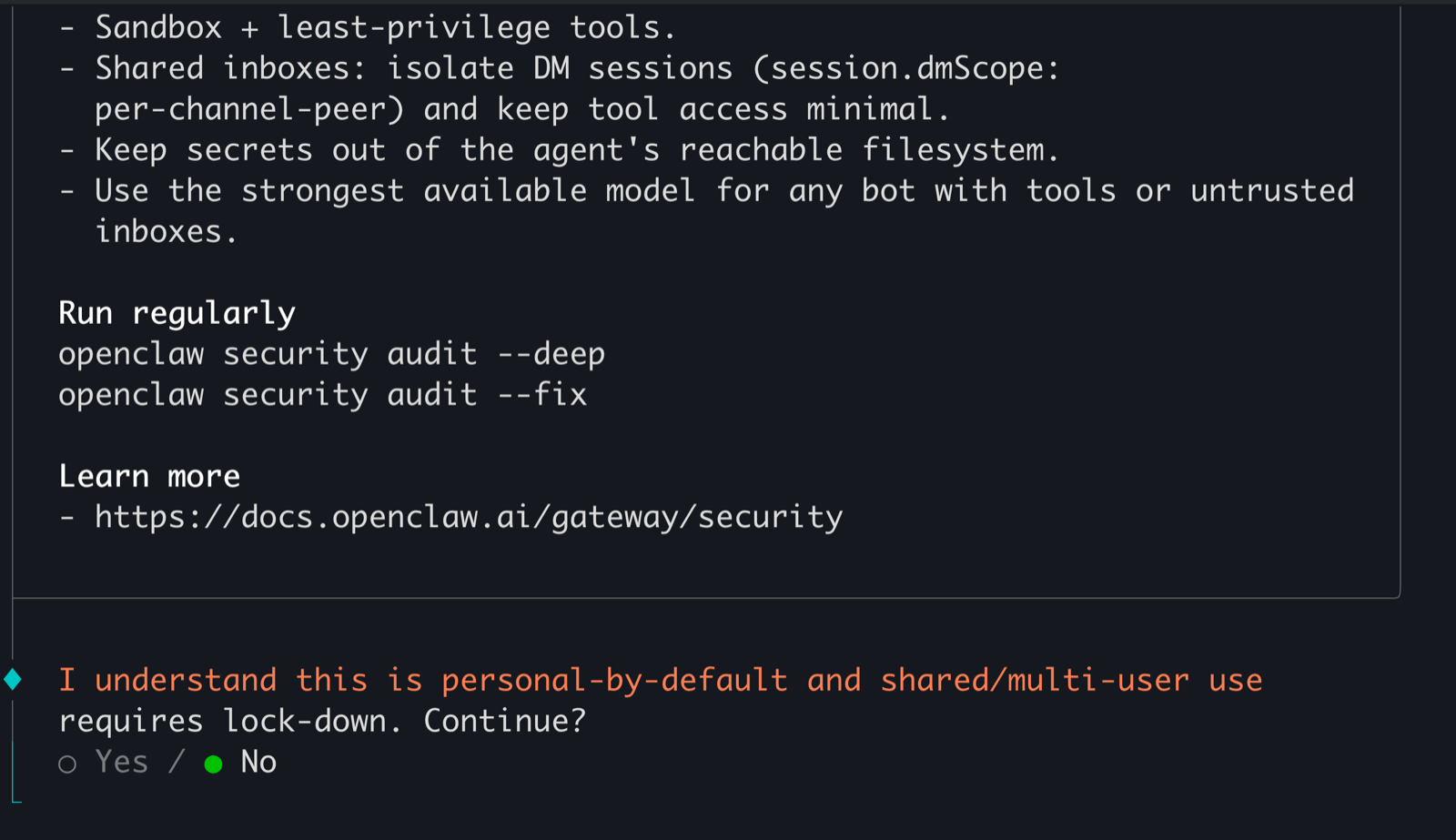
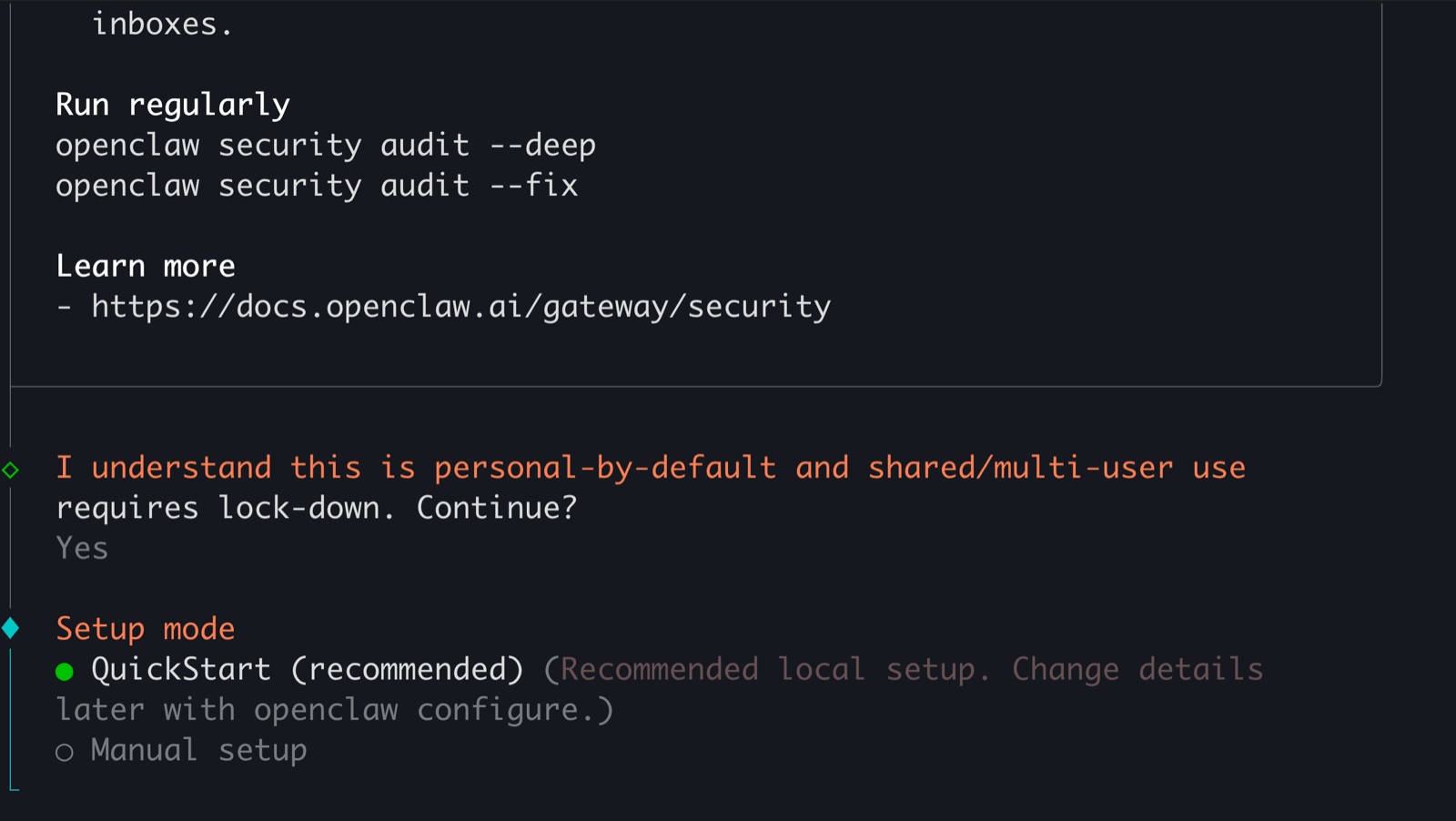
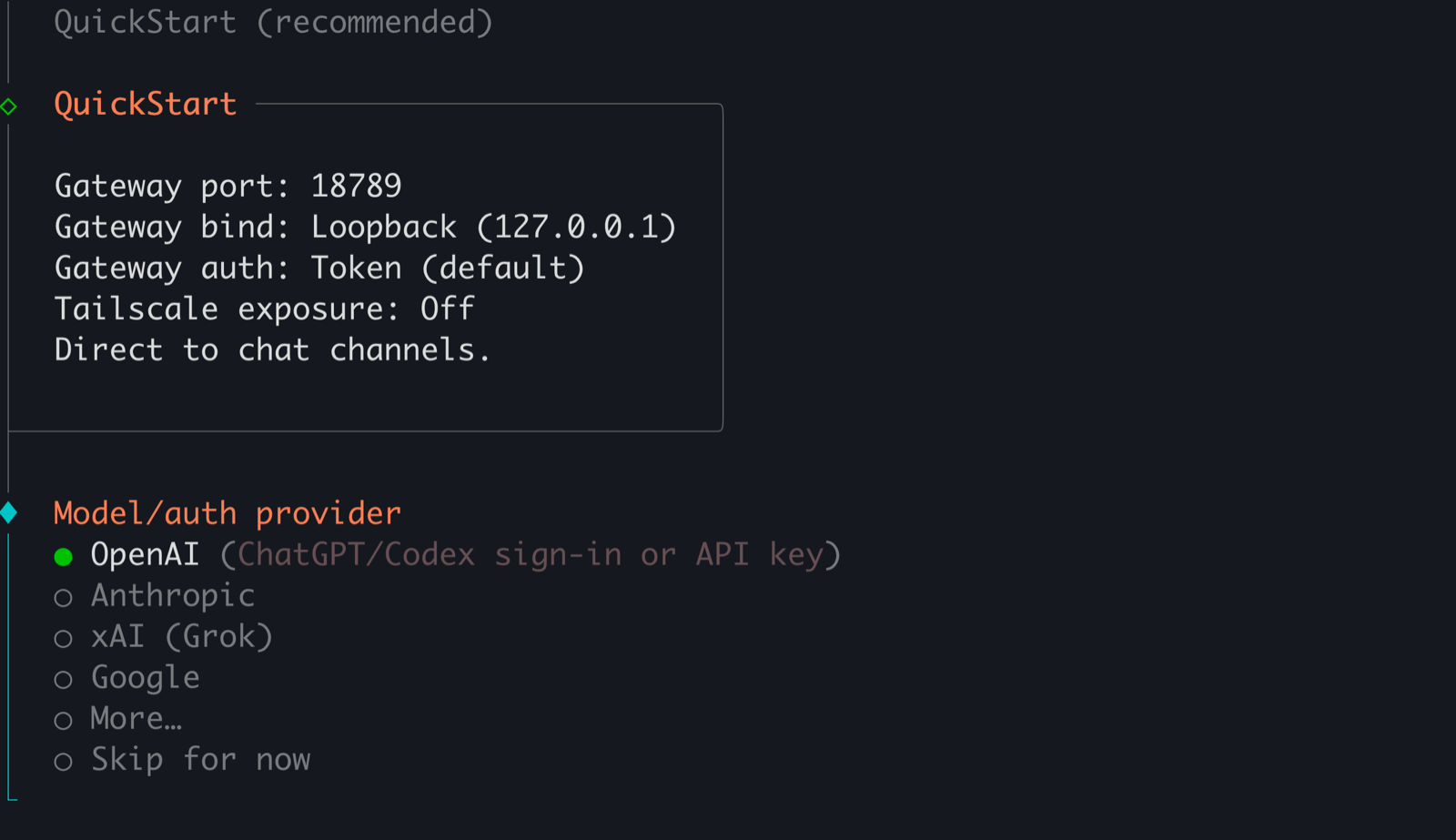
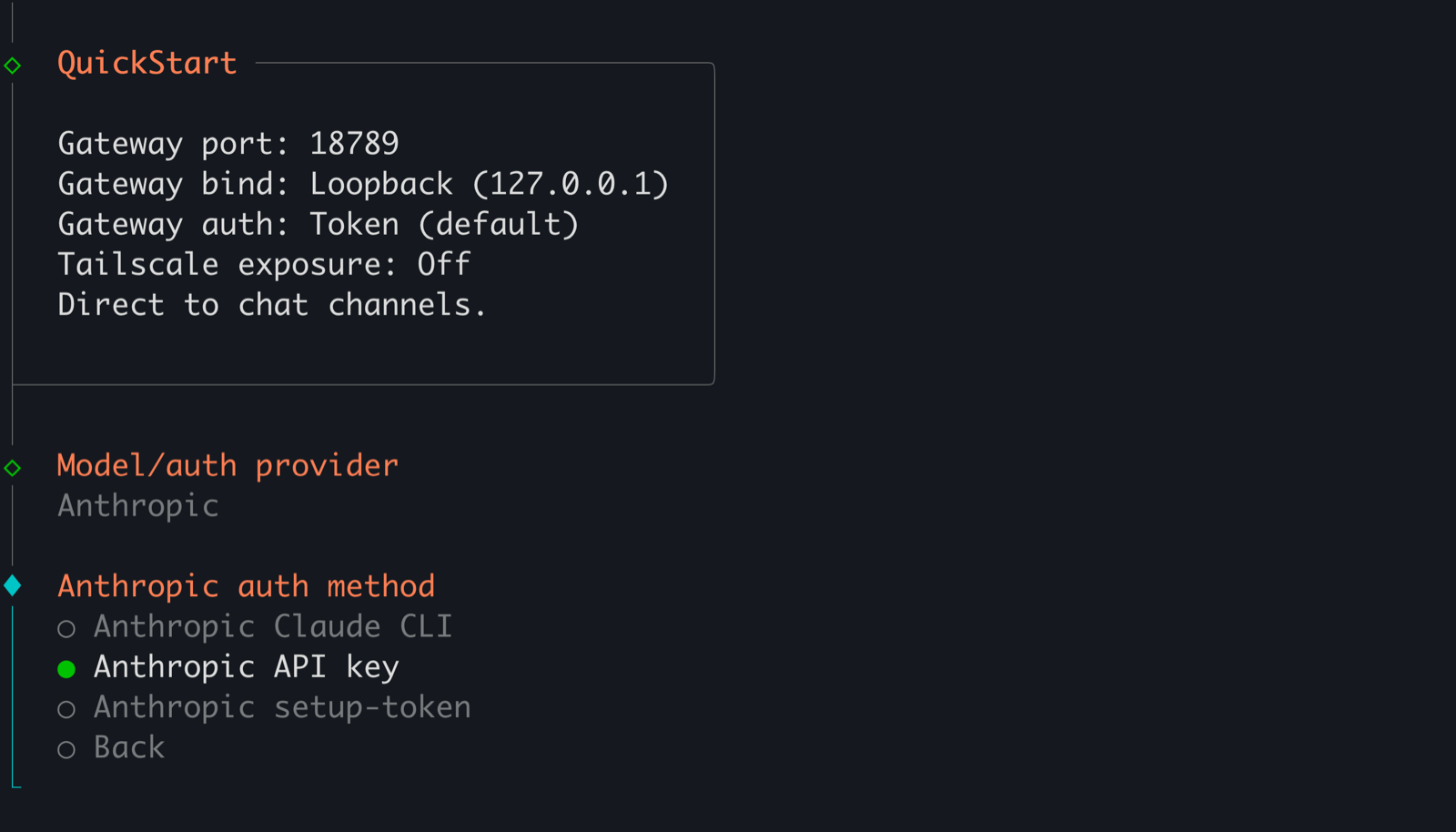
/usr/lib/node_modules/openclaw and launches its interactive setup wizard. At every token prompt, type the placeholder, not the real value. Exact strings matter; copy from this guide.-
Personal data acknowledgement → I understand.
-
Setup mode → Quickstart.
-
Model provider → Anthropic.
-
Anthropic auth method → Anthropic API Key.
-
Anthropic API key →
__anthropic_api_key__.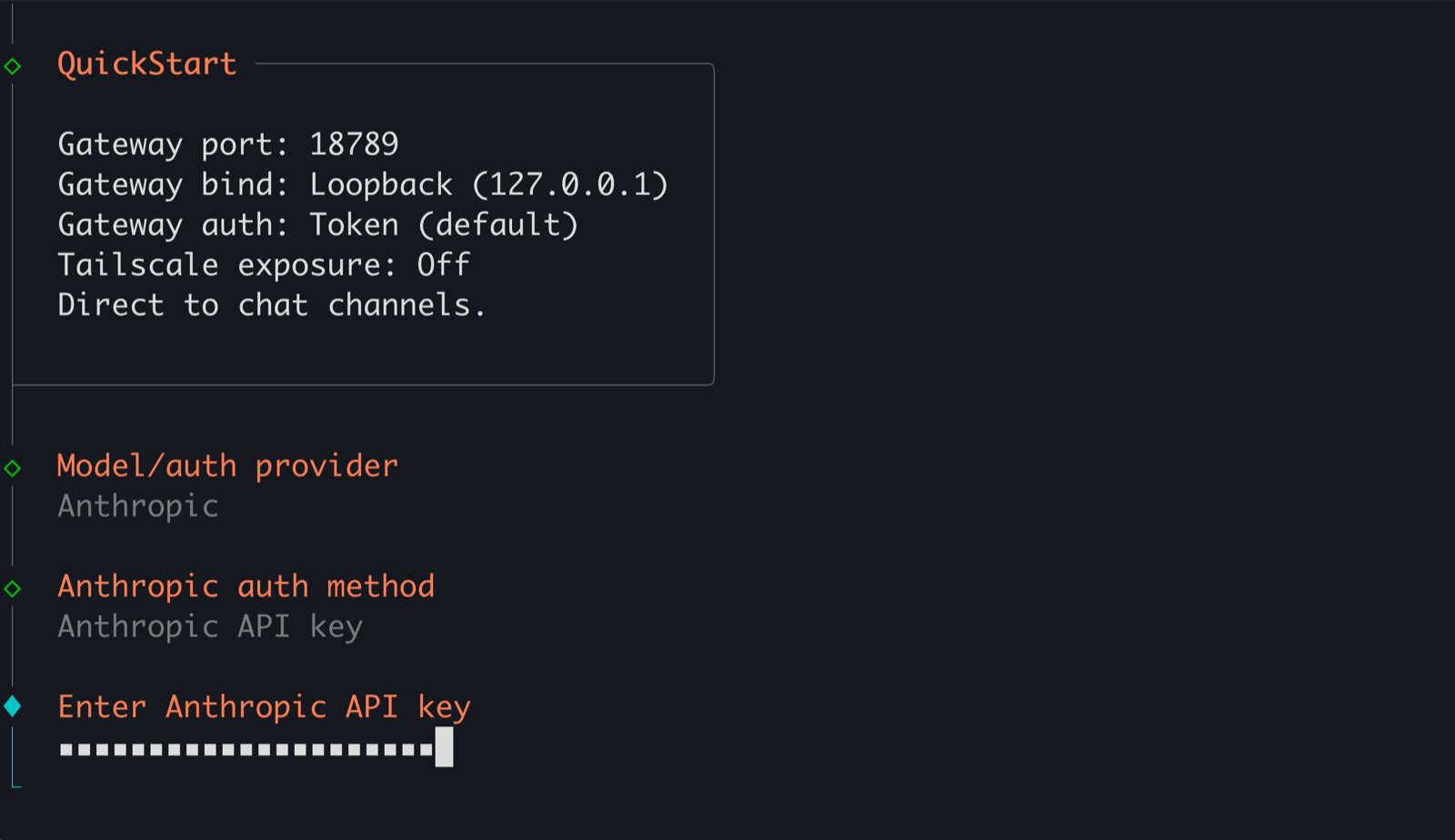
-
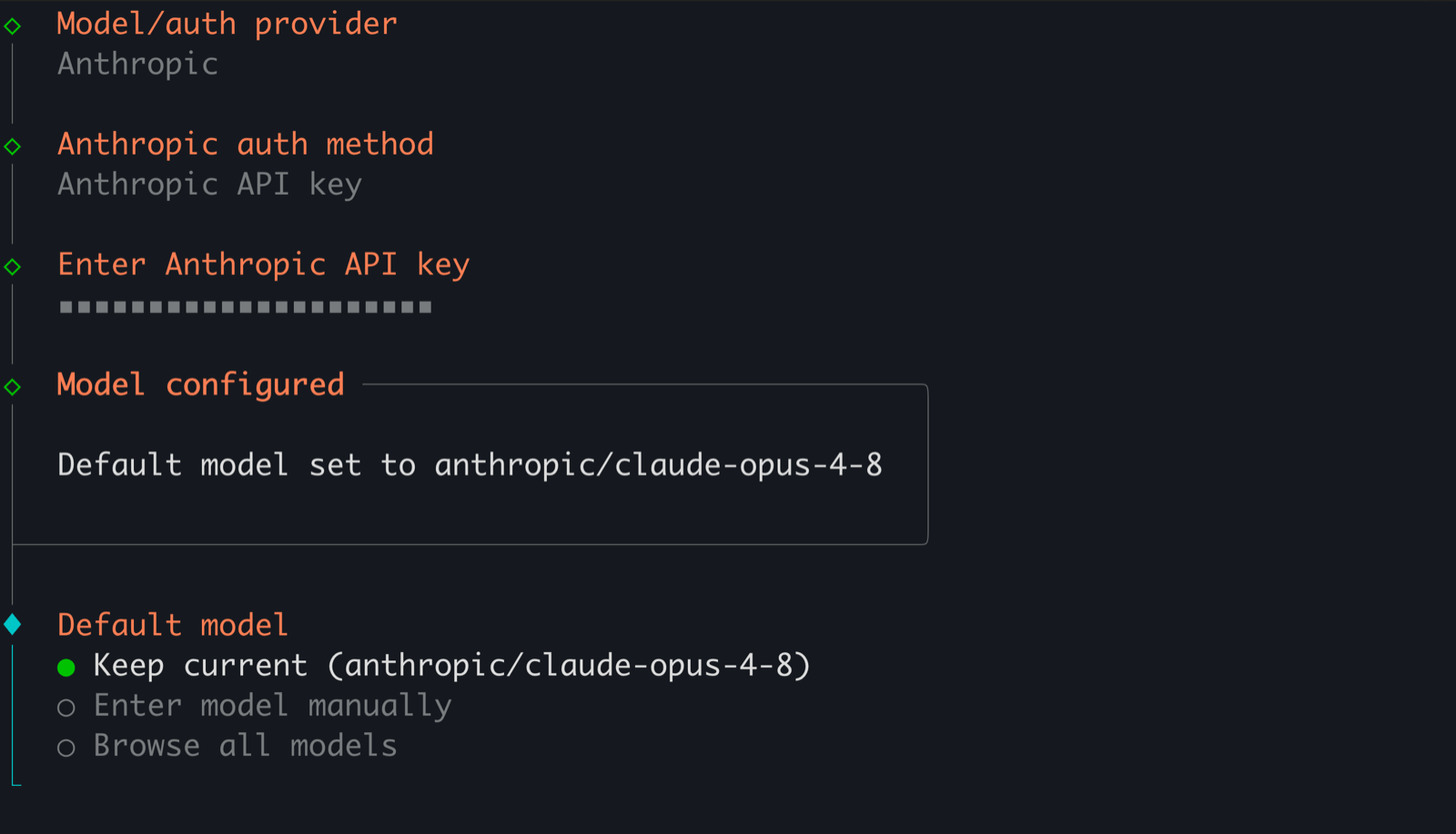
Model → pick your preferred Claude model.
-
Messaging platform → Slack (Socket Mode). The wizard then prints a
Slack manifest JSONblock; copy it for the next section.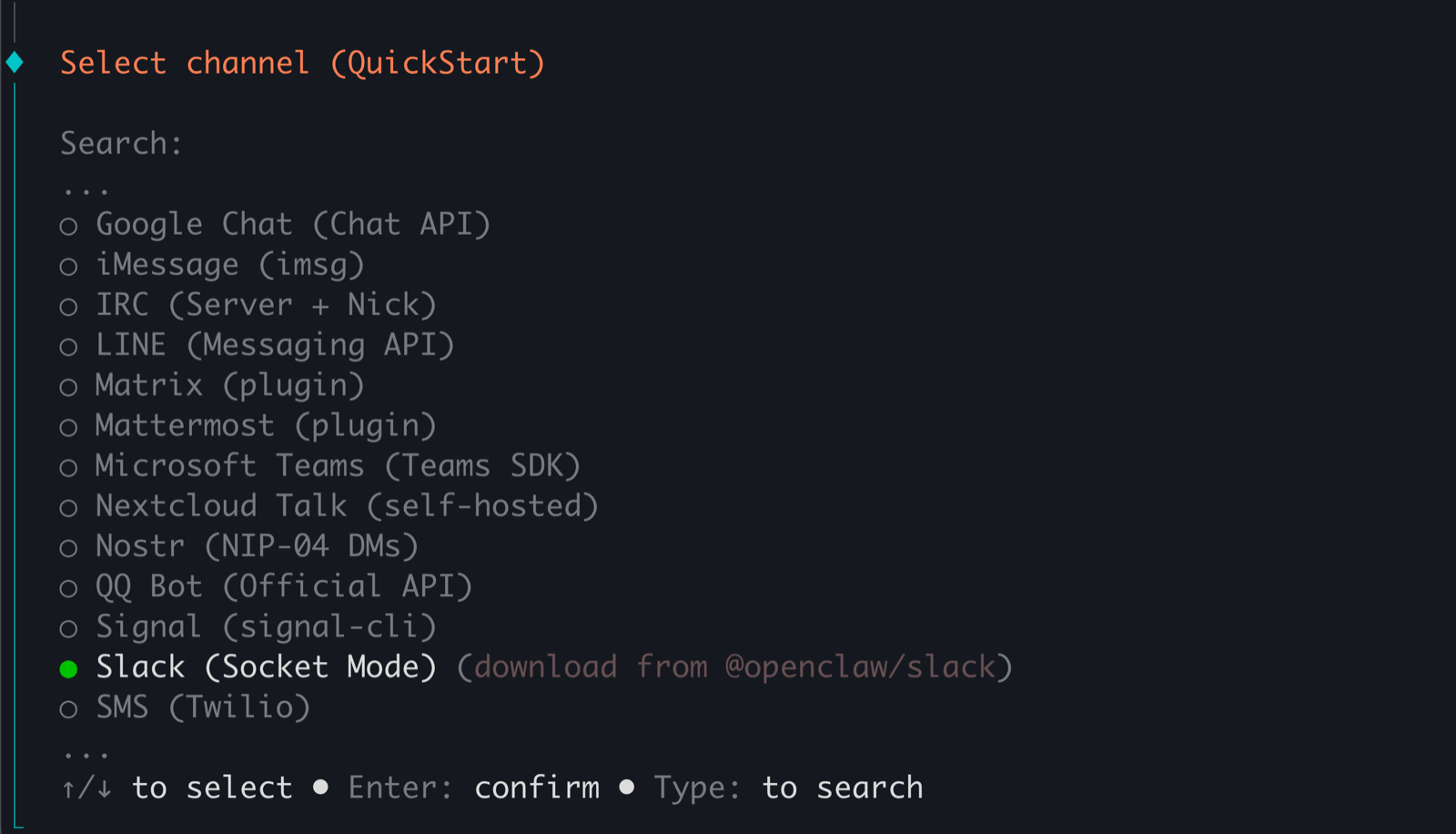
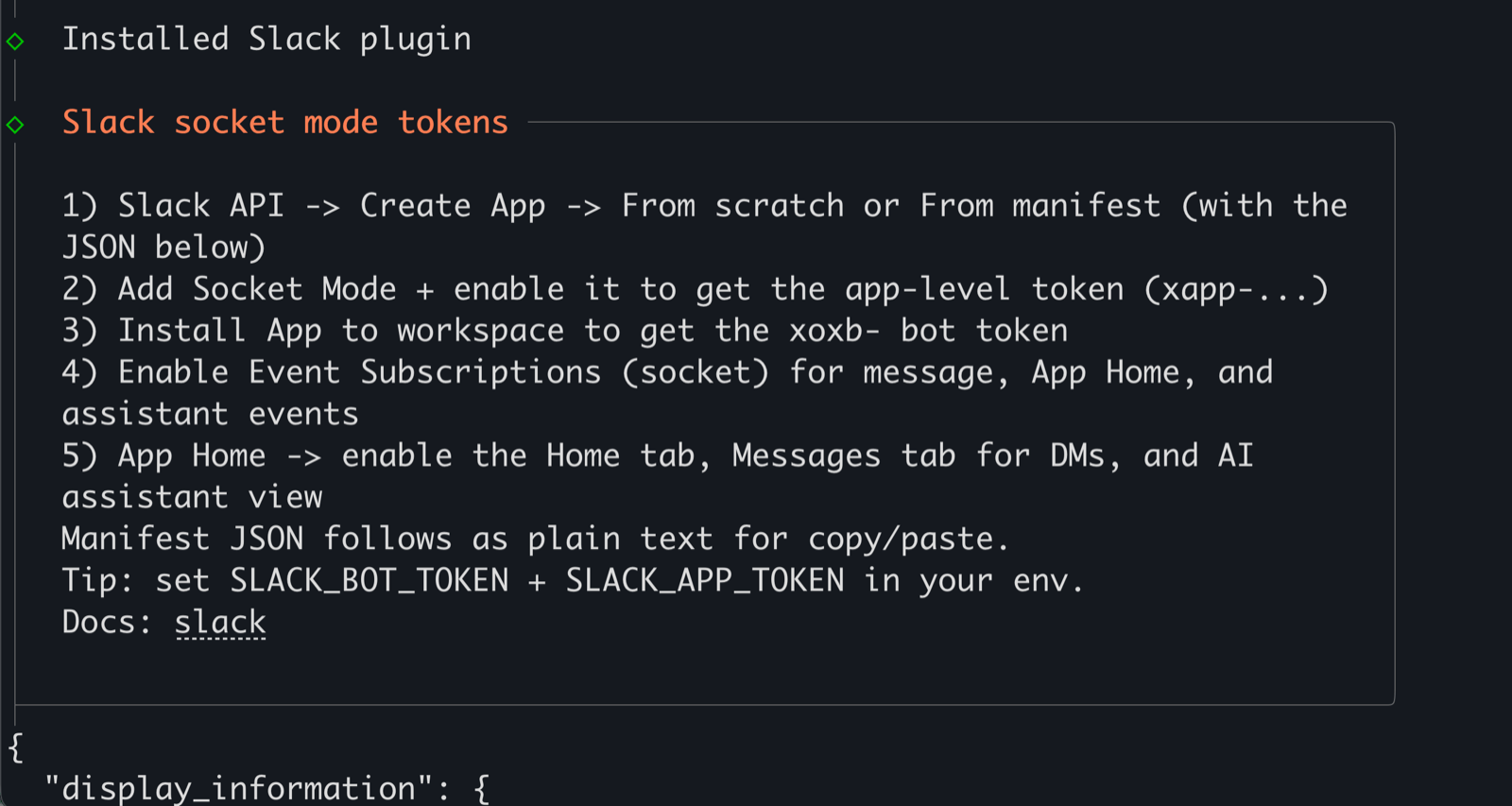
openclaw channels remove slack then re-run the wizard to see it again.-
Slack Bot Token →
__slack_bot_token__.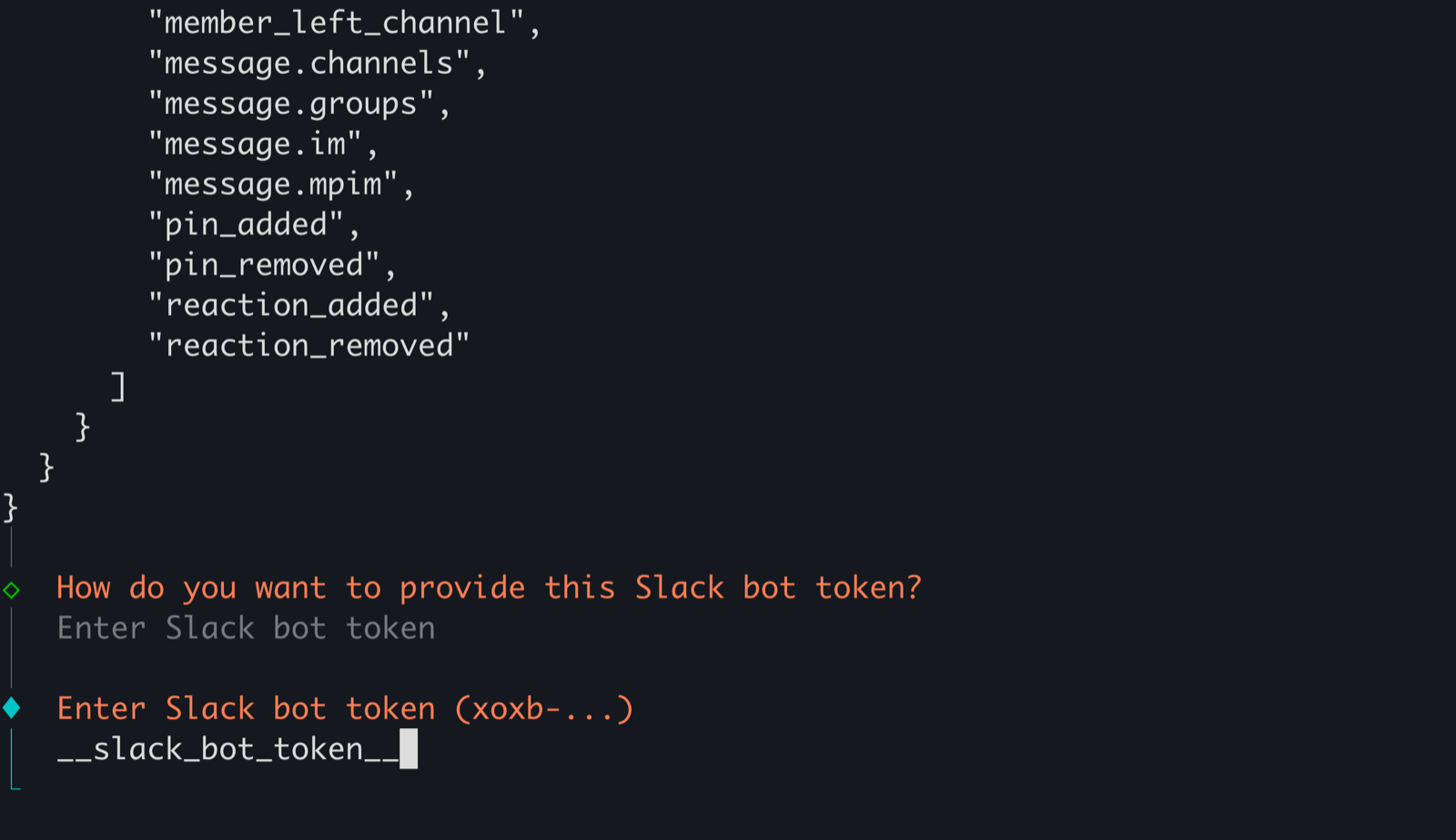
-
Slack App Token →
__slack_app_token__.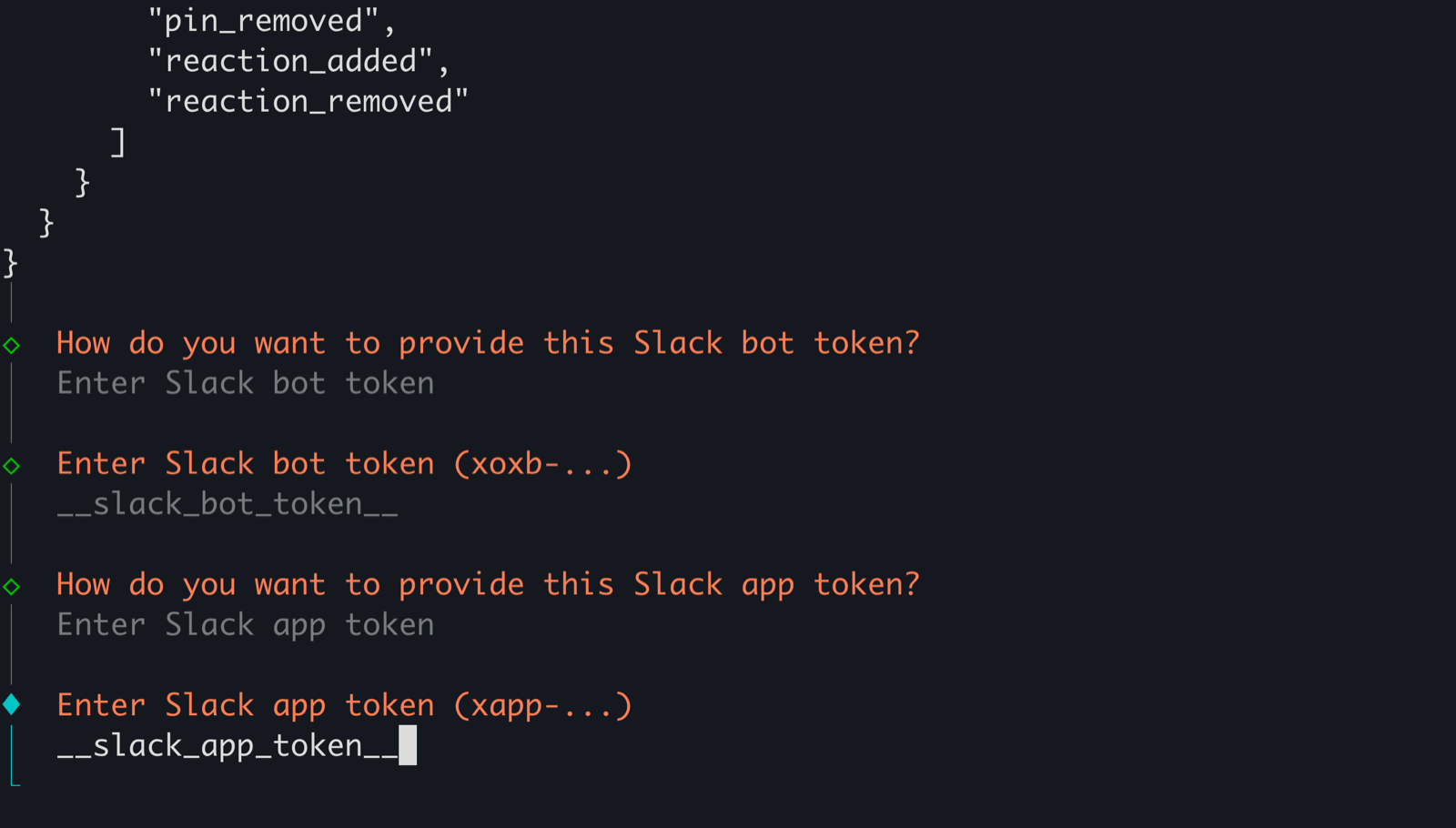
-
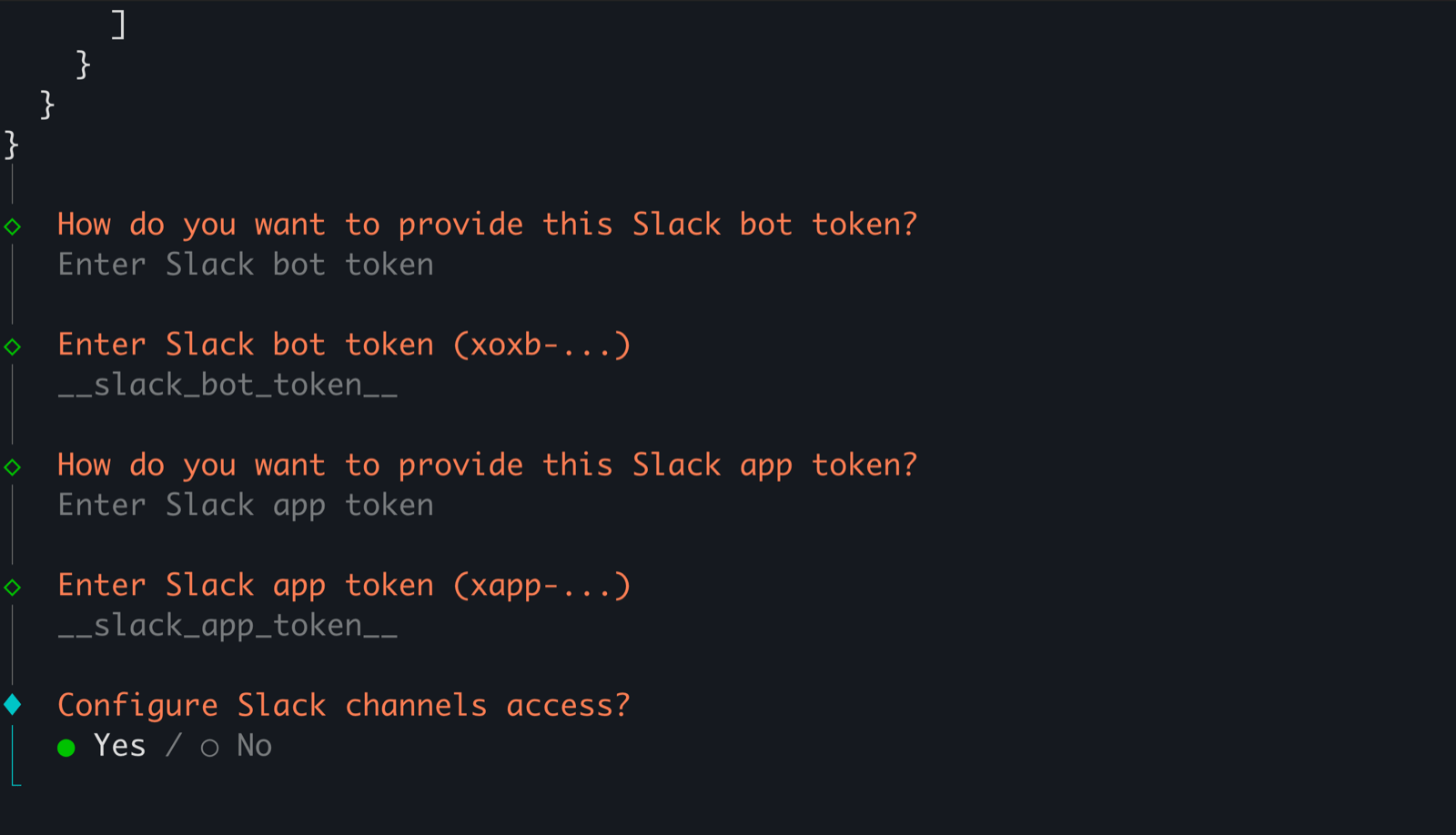
Configure channel access? → Yes.
-
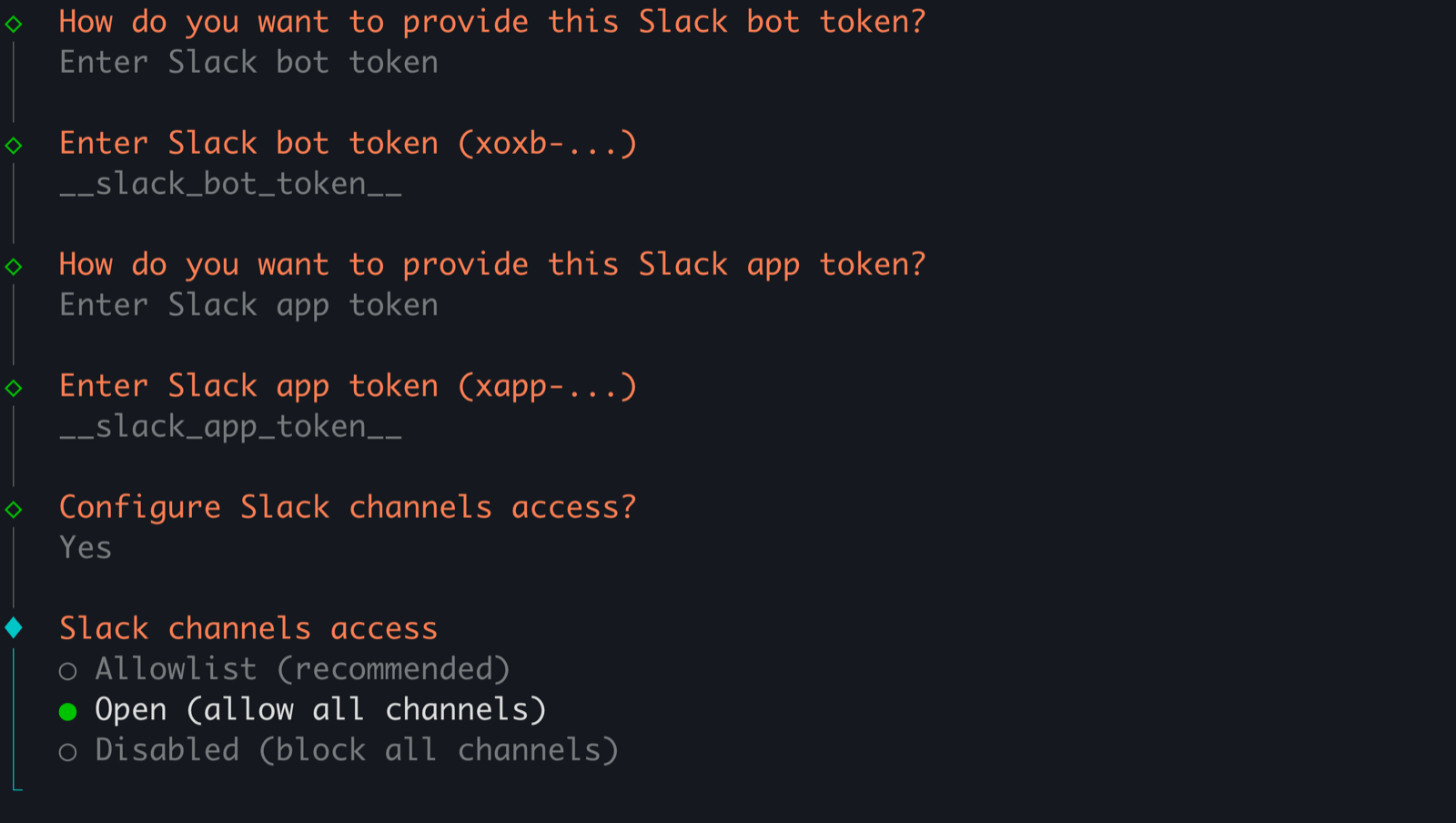
Channel access → Open.
-
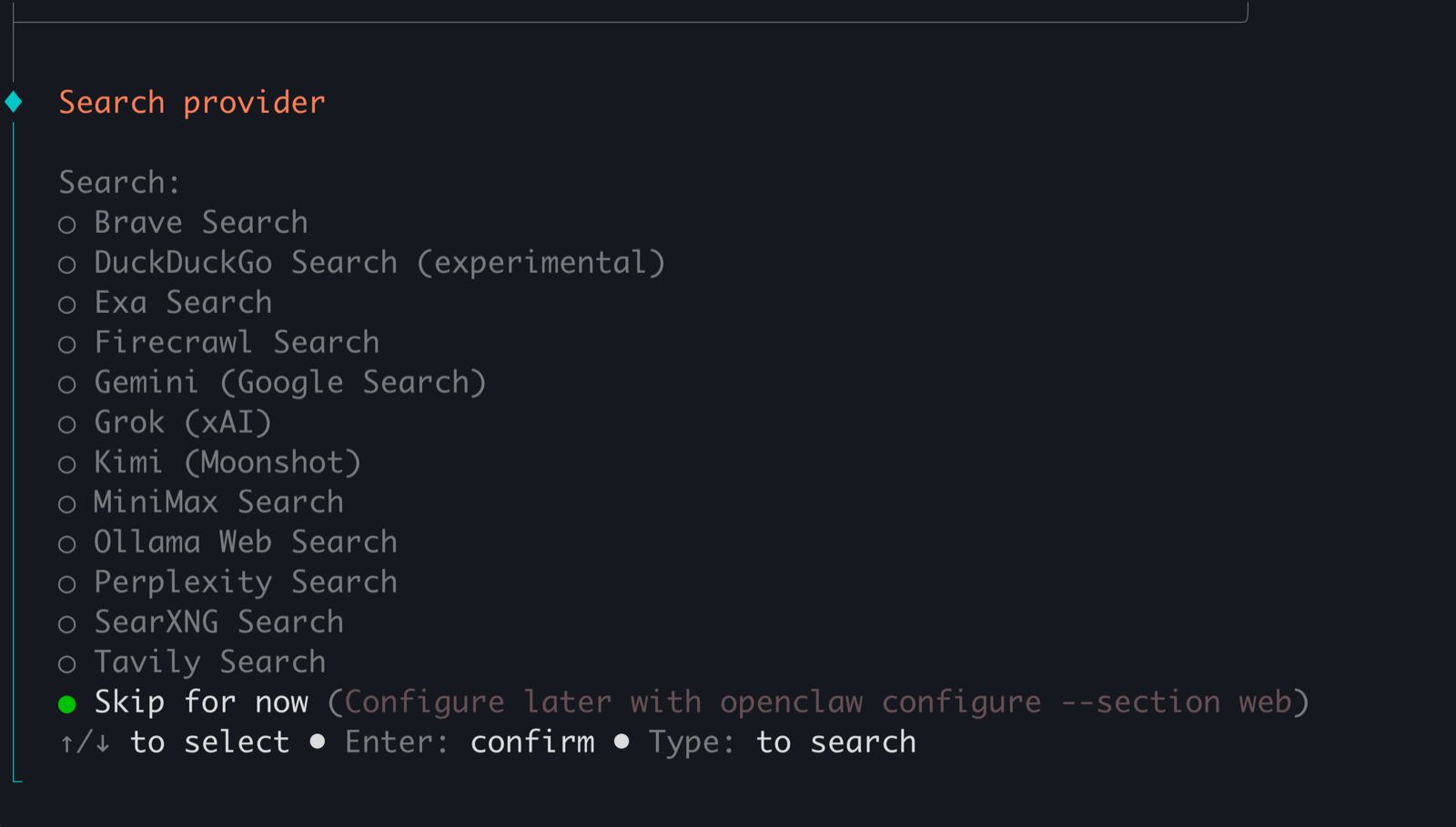
Search provider → Skip.
-
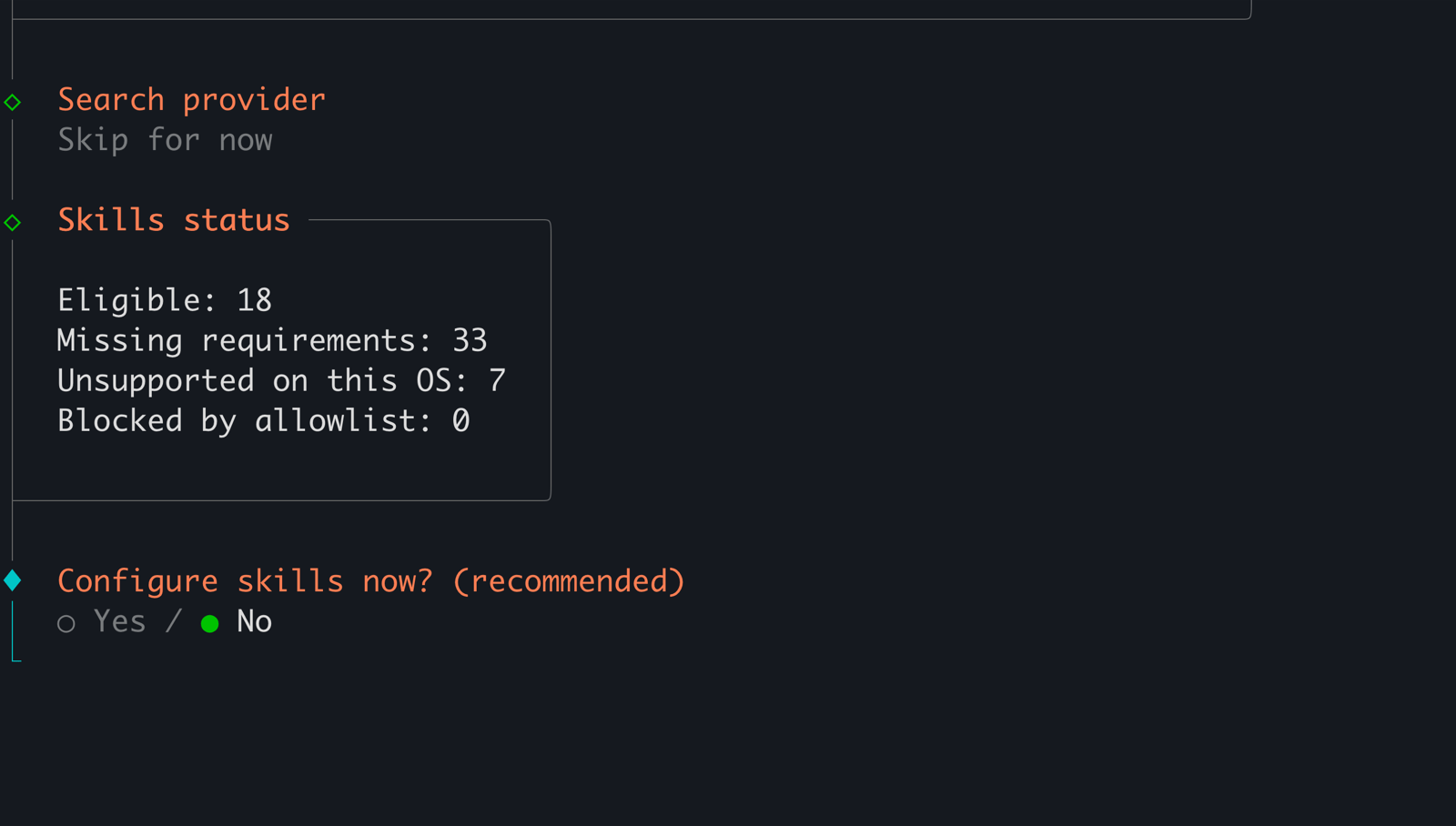
Skills → No (skip).
-
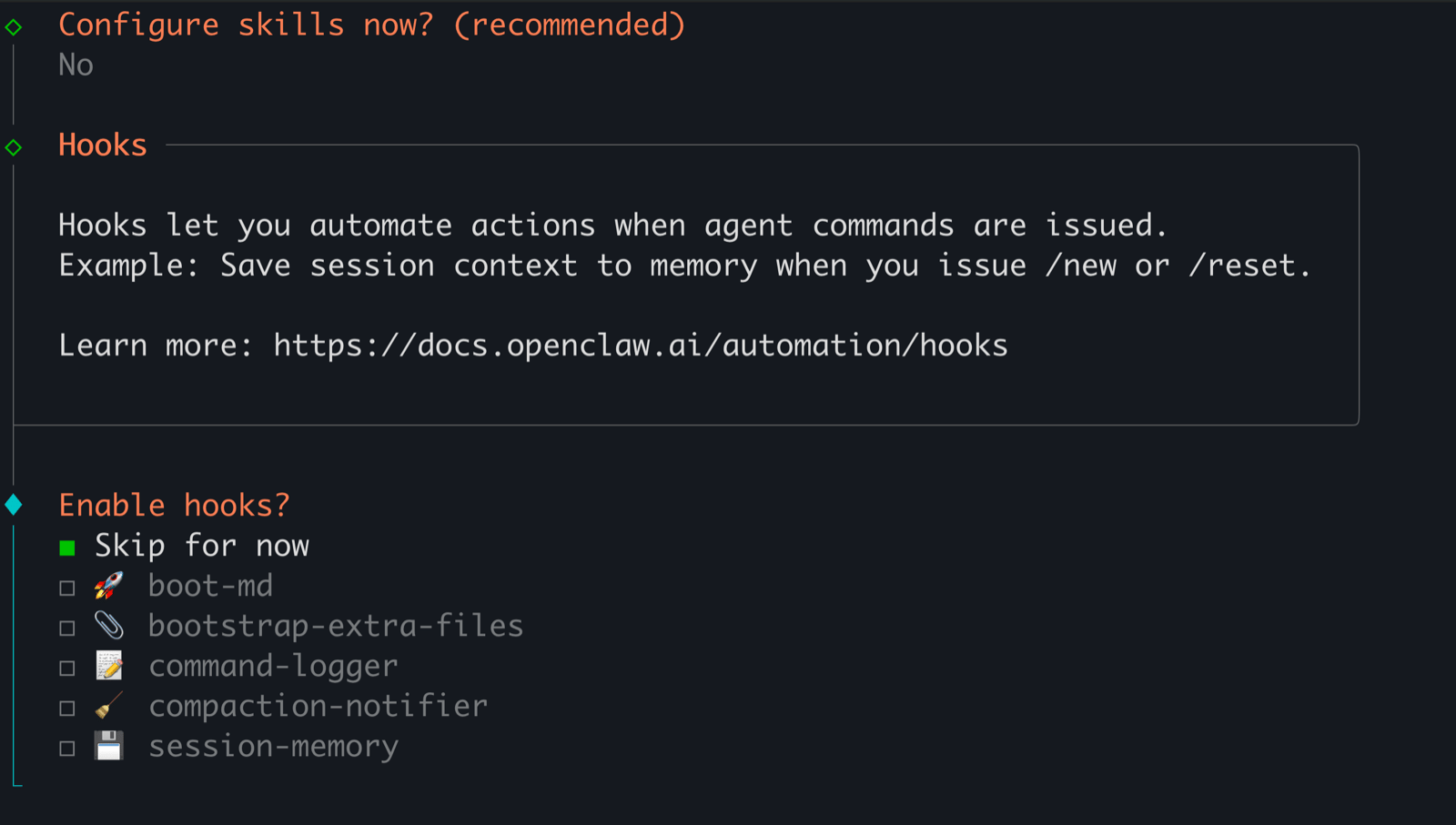
Hooks → Skip for now.
-
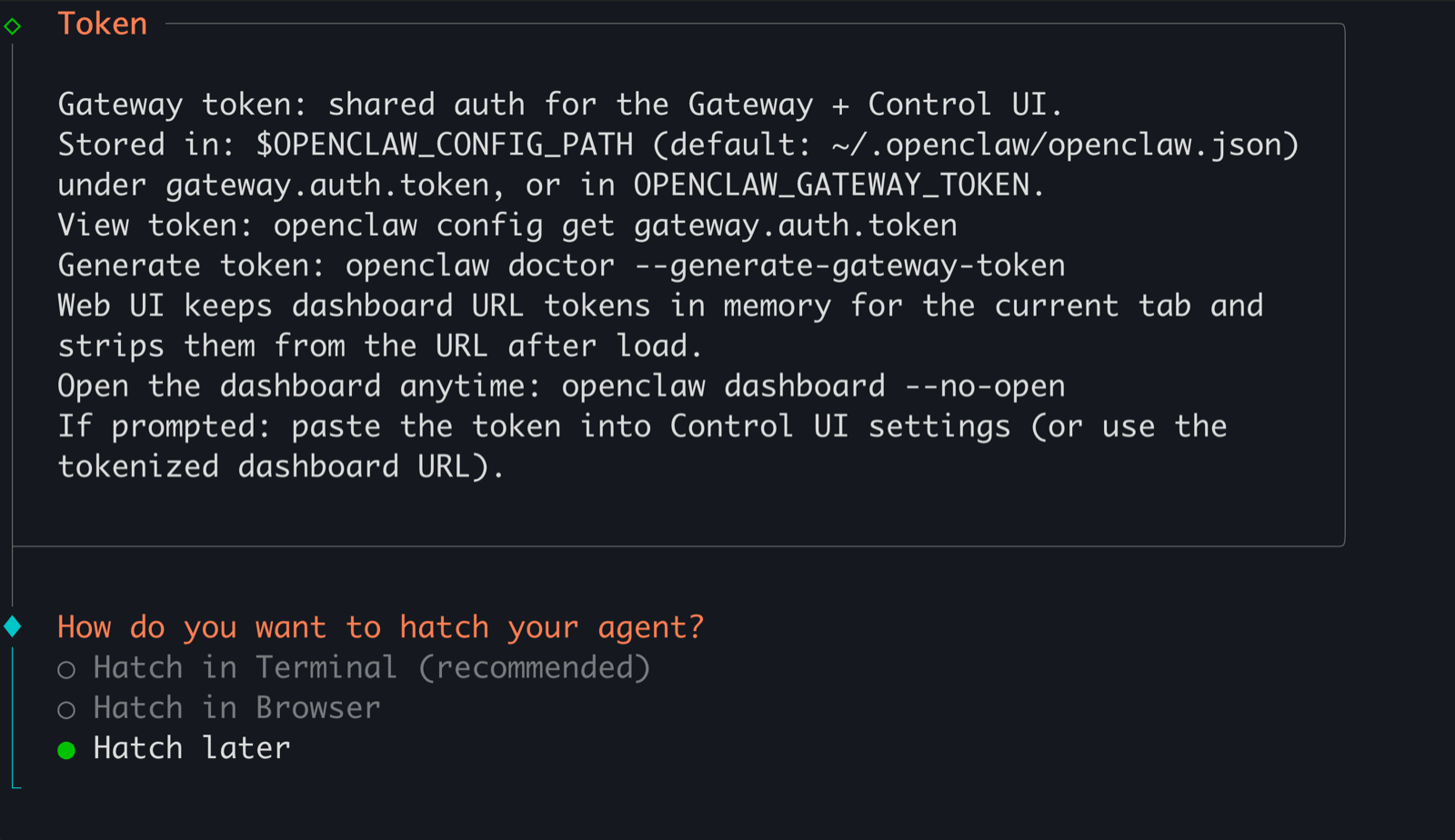
Hatch agent in terminal? → No (hatch later).
6. Create the Slack app from OpenClaw’s manifest
OpenClaw’s manifest pre-configures every scope, event, and feature its Slack plugin needs. Pasting it into Slack’s “Create from manifest” flow provisions the app in one shot.Create the app in Slack from the manifest
Install to your workspace and copy the bot token
xoxb-...).Generate the App-Level Token
connections:write scope, Generate, copy the xapp-... token.Paste the real tokens into Agent Vault
prod → Credentials → SLACK_BOT_TOKEN → edit → paste the xoxb-... token → save. Then SLACK_APP_TOKEN → edit → paste the xapp-... token → save.7. Connect openclaw-box to Agent Vault
agent-vault run wraps OpenClaw’s gateway so every outbound call goes through av-broker.
Mint an agent token
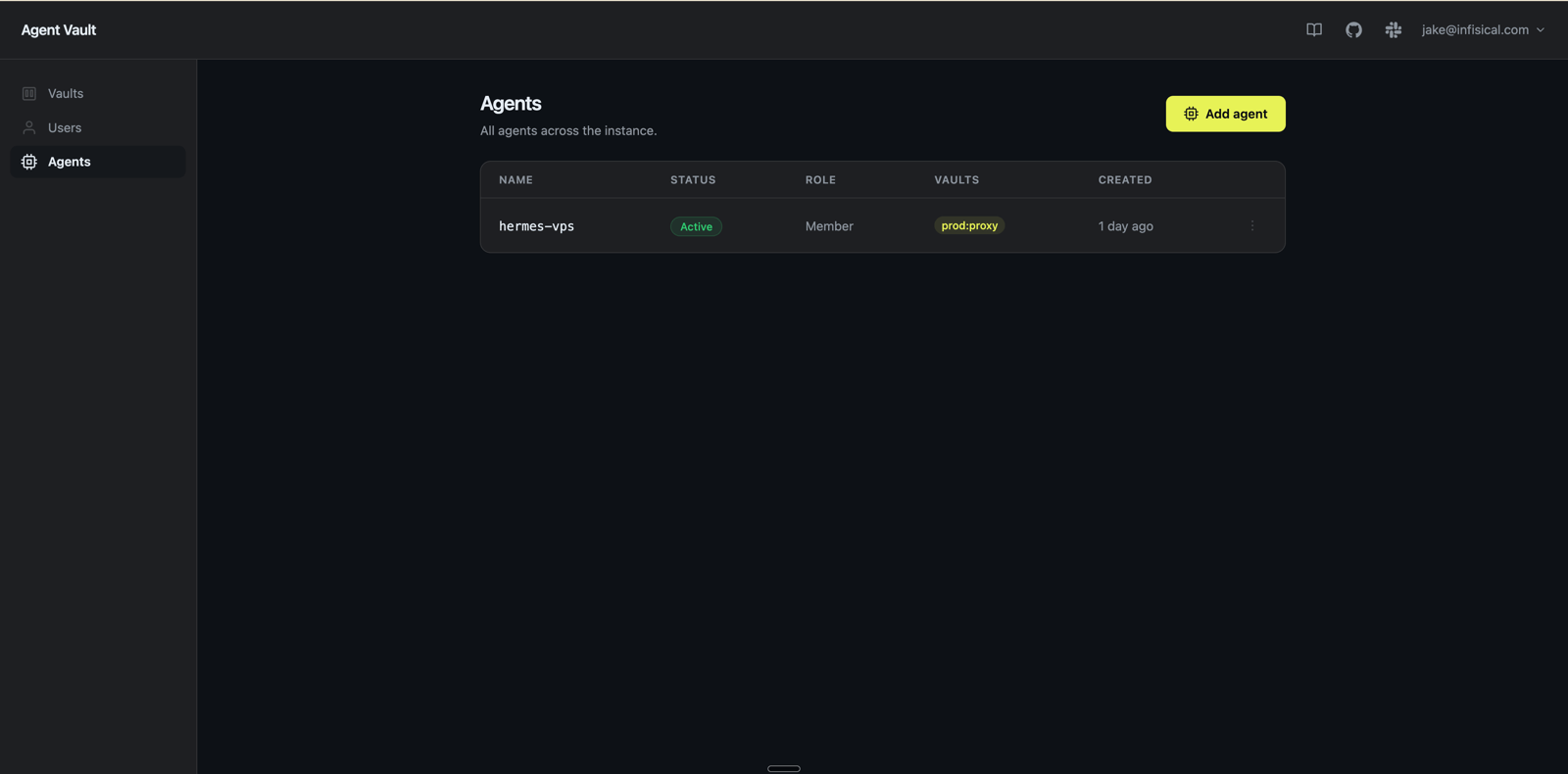
-
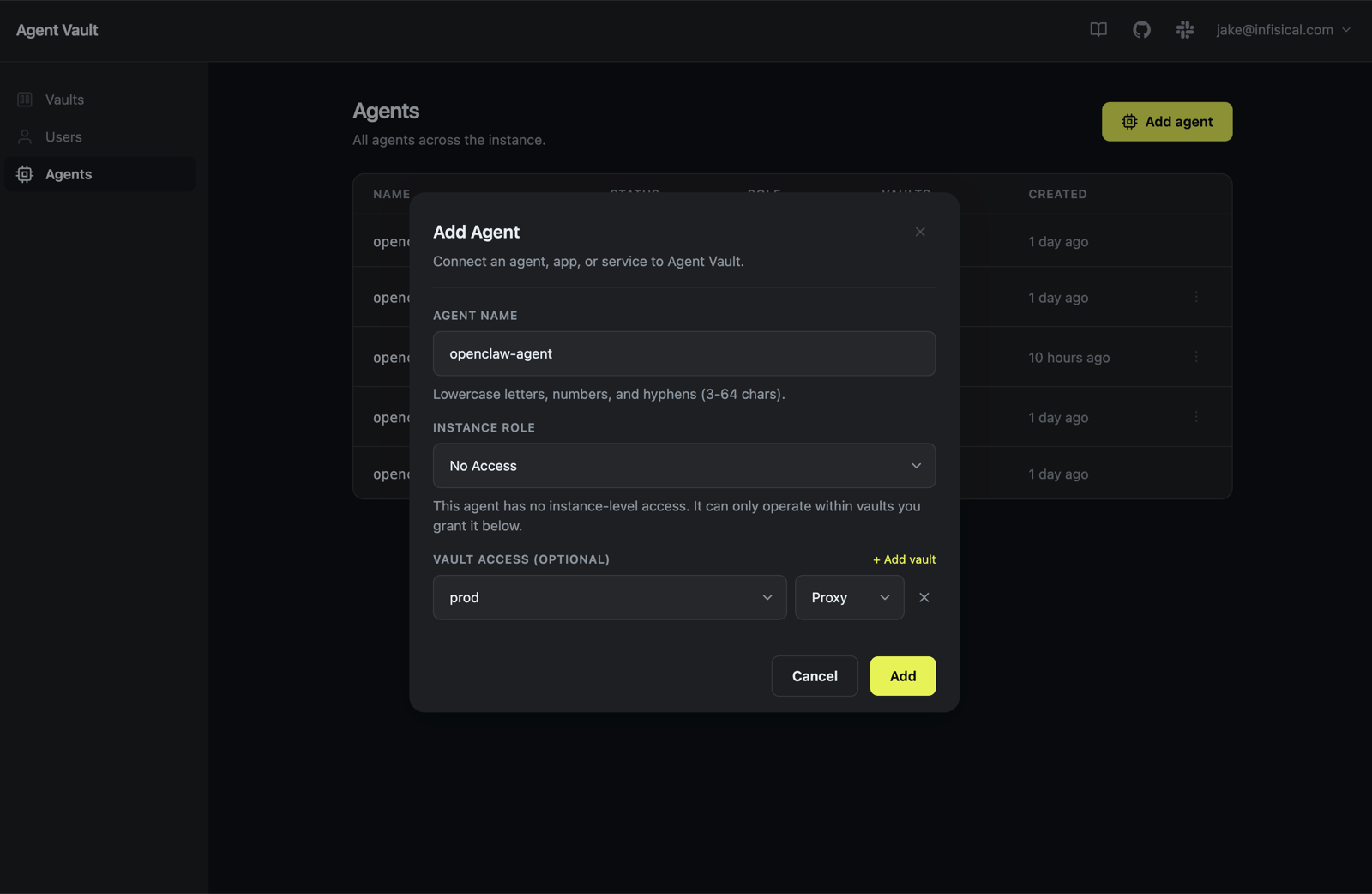
Agent name:
openclaw-box -
Vault access: click + Add vault, pick
prod, leave role atproxy -
Click Add
AGENT_VAULT_ADDR, AGENT_VAULT_TOKEN (the av_agt_... value), and AGENT_VAULT_VAULT. Copy all three. The address shown may point at localhost or your laptop’s tunnel; in the env file below you’ll substitute av-broker’s private VPC IP (e.g. http://10.108.0.3:14321) because openclaw-box reaches Agent Vault over the private network, not through your laptop’s SSH tunnel.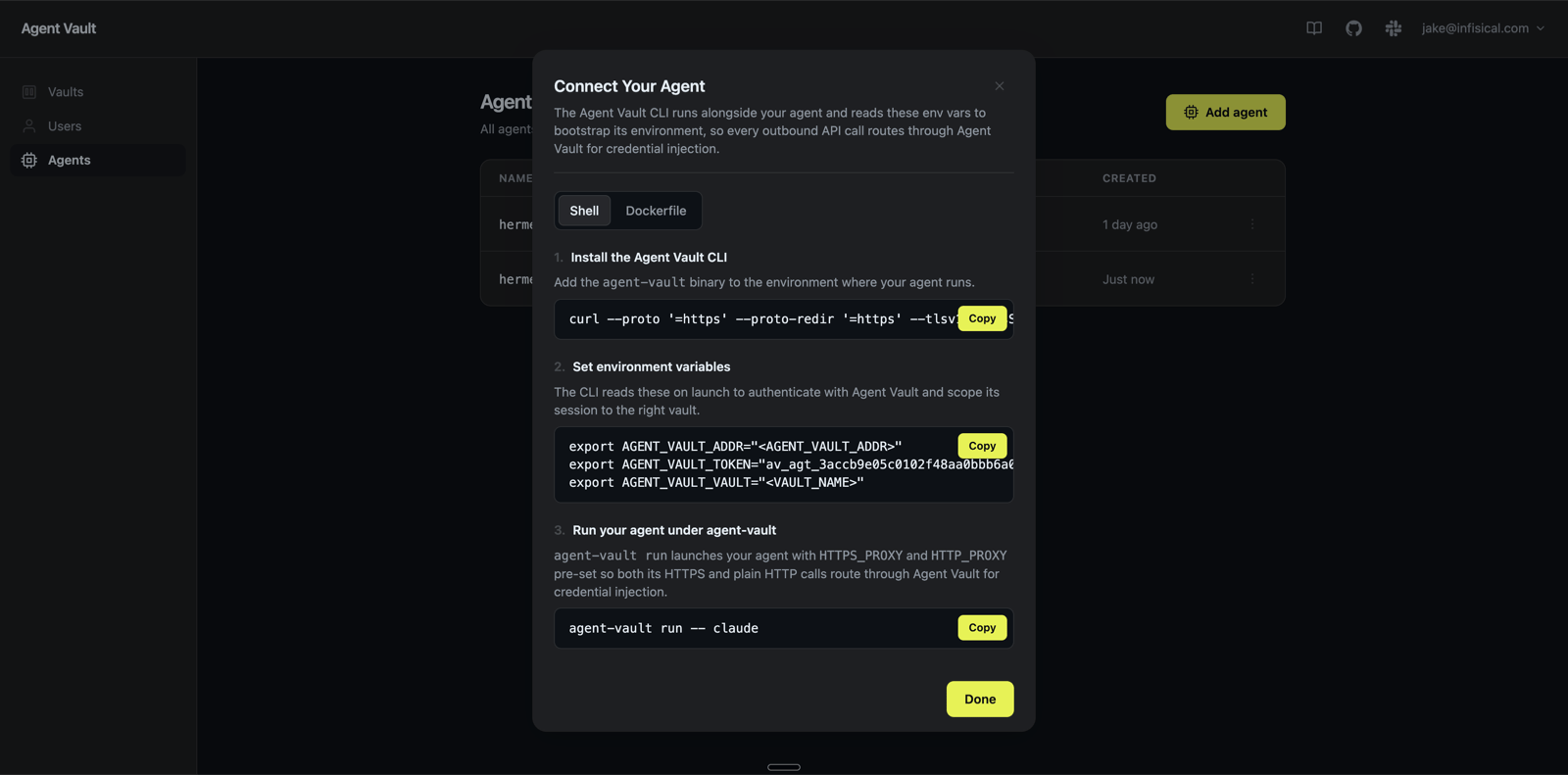
Export the env vars into your shell
agent-vault run needs the vars in the current shell:Sanity-check the proxy path
Write the systemd drop-in override
ExecStart with agent-vault run:Enable linger, reload, and start
agent-vault: routing HTTP/HTTPS through MITM proxy (10.108.0.3:14322): the wrap is live.[slack] socket mode connected: bot is on Slack via Socket Mode.[gateway] provider auth state pre-warmed in <N>ms: Anthropic API key brokered successfully.[gateway] ready: gateway accepting traffic.
8. Lock down egress (optional)
Restrictopenclaw-box outbound to av-broker only. A compromised OpenClaw then has nowhere to exfiltrate.
Create and attach the egress firewall
openclaw-egress. One outbound rule: TCP, destination 10.108.0.0/20 (your VPC range), any port.In Apply To Droplets, select only openclaw-box. Attaching this to av-broker breaks the brokered requests.9. Try it end-to-end
In your target Slack channel, @-mention the bot. OpenClaw replies, with every outbound call routed through10.108.0.3:14322.
To exercise all four brokered services in one prompt:
@openclaw summarize the last 5 PRs in <owner>/<repo> and create a Notion page with the summary. Reply with the new page’s URL.
Replace <owner>/<repo> with a repo your GITHUB_TOKEN has read access to.
To watch brokered traffic in real time, tail the gateway journal on openclaw-box:
10. Revoke and recover
Send another Slack message
401 from the broker. The placeholder strings on openclaw-box are inert without a valid agent token.Re-issue to recover
AGENT_VAULT_TOKEN in /etc/openclaw/agent-vault.env, then systemctl --user restart openclaw-gateway. OpenClaw replies normally on the next @-mention. See Agents → Rotating an agent token.Cleanup
- DigitalOcean console → Droplets: delete
av-brokerandopenclaw-box. - Networking → VPC: delete the VPC.
- Firewalls: delete
openclaw-labandopenclaw-egress(if you created it). - Rotate or revoke the real upstream API tokens you uploaded (they remain valid in their home services until you do).
Related
- Run Hermes on a VPS: the same brokering pattern with a Hermes Agent and Telegram bot on Hetzner Cloud.
- Connect a custom agent: same pattern for any agent that supports
HTTPS_PROXY. - Container isolation: local Docker isolation as an alternative to a remote VPS.